CH 03 · Controllers
Gamepad Tester
Use this gamepad tester to check button responses, stick movement, triggers and vibration where supported. Press a button to start; nothing leaves your device.
Gamepad tester
Shows every button, trigger and stick of a controller live. Press Start the test, then press any button on the controller: browsers hide a controller from a page until a button is pressed.
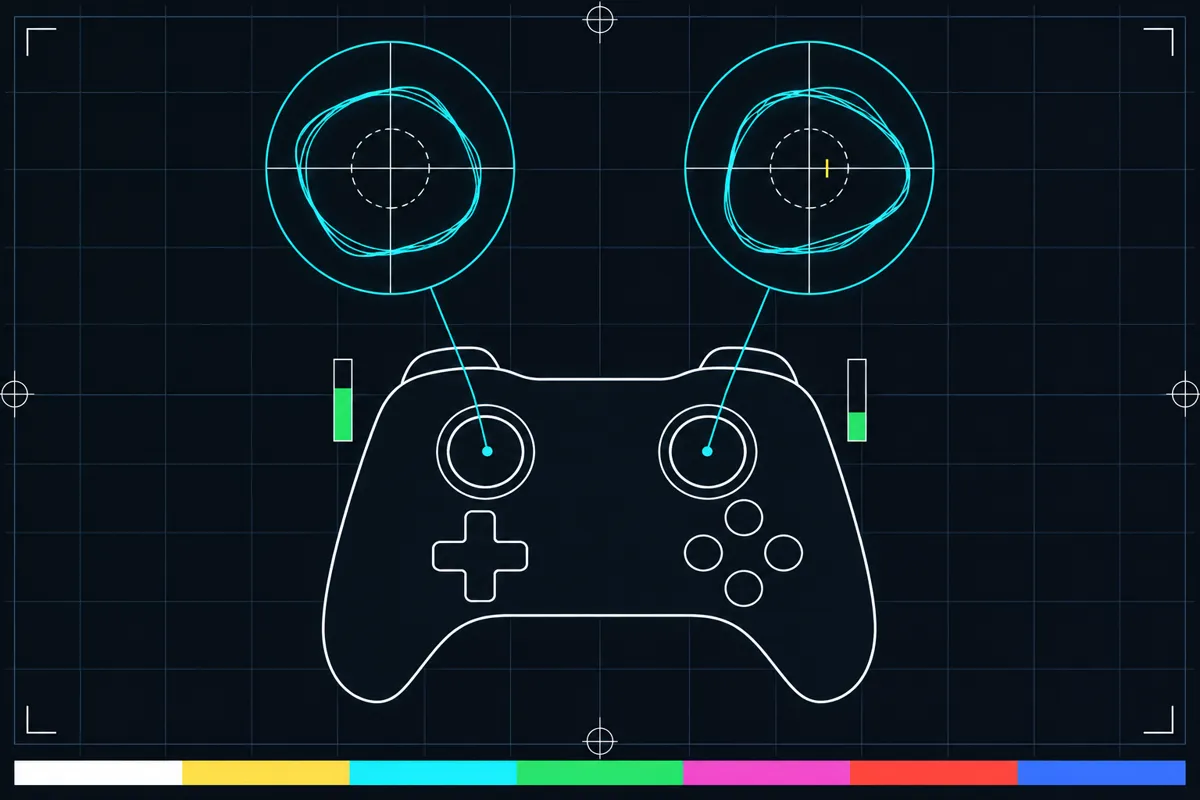
What the controller test checks
This controller tester reads input from a connected gamepad while the page is open. The browser starts sharing gamepad input with the page after the first button press, so press a button when the test is ready. The page then checks the controls as their readings update.
You can see a reading for every button, including its analog value when one is available. The test also draws both stick paths, shows trigger readings as bars and can try vibration where the device and browser support it. These readings help you see which controls respond and how their input changes.
The page may show a model name based on the gamepad identification string supplied by the browser. It uses the vendor and product identifiers in that string to select a model row and its button labels. If the browser does not provide a useful identification string, the shown model or labels may not identify your device.
Understanding each reading
Button readings show which buttons the test detects and each button's analog value. A button that does not change its reading when pressed may not be reaching the page. A changing reading shows that the page is receiving input, but the test does not tell you whether the button feels right or works in every game.
The stick drawings trace the paths of both sticks as they move. A circle marks the suggested dead zone, an area near the center where small movements may be treated differently. If a stick path moves while you are not touching the stick, that can point to unwanted input. The circle is a visual reference, not a pass or fail boundary supplied by the test.
Trigger bars show the input reported for each trigger. The update timestamps are used to estimate how often the browser reports changes. This is the browser's update rate, not the gamepad's USB polling rate, so do not use it as a reading of the device's USB connection speed.
The vibration check tries a rumble effect where supported, including trigger rumble on devices that support it. If you do not feel vibration, the test cannot tell from that alone whether the gamepad is broken. Support for the effect varies by device and browser.
When a result looks wrong
If the page shows no input, first remember that it needs a button press before the browser shares gamepad input. If readings still do not appear, or a control does not change as you use it, the test has found a result worth checking. A model name or button label that looks unfamiliar can also reflect the identification information the browser supplied.
If a stick path moves while the stick is untouched, or a button or trigger reading behaves unexpectedly, use the page's linked the controller connection guide for next steps. The guide is there for connection and input problems; the test itself reports readings and does not repair the device.
Treat the display as a check of what the browser reports to this page. It cannot establish how the controller behaves in every other setting, and a missing vibration response does not by itself show that other controls have failed.
How the readings are collected
After the first button press, the page checks the gamepad on each animation frame, the repeated drawing update used while the page is active. It records button readings and stick positions as they arrive, draws the stick paths, and updates the trigger bars. The timestamps support an estimate of the browser's reporting rate.
Vibration is checked by asking the gamepad to play a rumble effect where supported. The test also reads the browser's gamepad identification string and uses its vendor and product identifiers to choose a model row and labels. The browser supplies this information, so the selected model is based on what it reports.
Browser support
| Browser | Runs |
|---|---|
| Chrome and Edge on a computer | Yes |
| Firefox on a computer | PartlyNo controller vibration. |
| Safari on a Mac | Yes |
| Safari on iPhone | PartlyNo controller vibration. Needs a paired controller. |
| Safari on iPad | PartlyNo controller vibration. Needs a paired controller. |
| Chrome on Android | PartlyNeeds a paired controller. |
| Samsung Internet | PartlyNeeds a paired controller. |
| Browsers inside apps | PartlyNo controller vibration. |
Source: MDN browser-compat-data 8.1.8 · checked November 6, 2026
Questions
How do I start the gamepad tester?
Press a button on the connected gamepad. The browser shares gamepad input with the page after that first button press, and the test can then show readings as they update.
What does the circle around the stick path mean?
It marks the suggested dead zone near the stick's center. Use it as a visual reference while you look at the path. The test does not provide a pass or fail threshold for the circle.
Does the update rate show my controller's USB polling rate?
No. The timestamps are used to estimate how often the browser reports updates to the page. The test labels this as the browser's rate, not the USB polling rate.
Why does the model name or button label look wrong?
The page chooses a model row and labels from the identification string provided by the browser. If that information does not match your device, the displayed model or labels may not identify it correctly.
Why can I not feel vibration in the test?
Vibration is tested where the device and browser support it, and trigger rumble is available only where supported. If you get no vibration, that result alone does not tell you whether the controller is broken.
What should I do if a button or stick reading looks wrong?
Use the linked the controller connection guide for next steps. The test shows what input the browser reports, but it does not repair the controller or confirm how it will work in every game.