CH 03 · Controllers
Xbox controller tester
Connect an Xbox Series or Xbox One controller by USB or Bluetooth, then press buttons and move the sticks to see what the browser reports. Nothing leaves your device.
Xbox Wireless Controller (Series X|S) tester
Shows every button, trigger and stick of a controller live. Press Start the test, then press any button on the controller: browsers hide a controller from a page until a button is pressed.
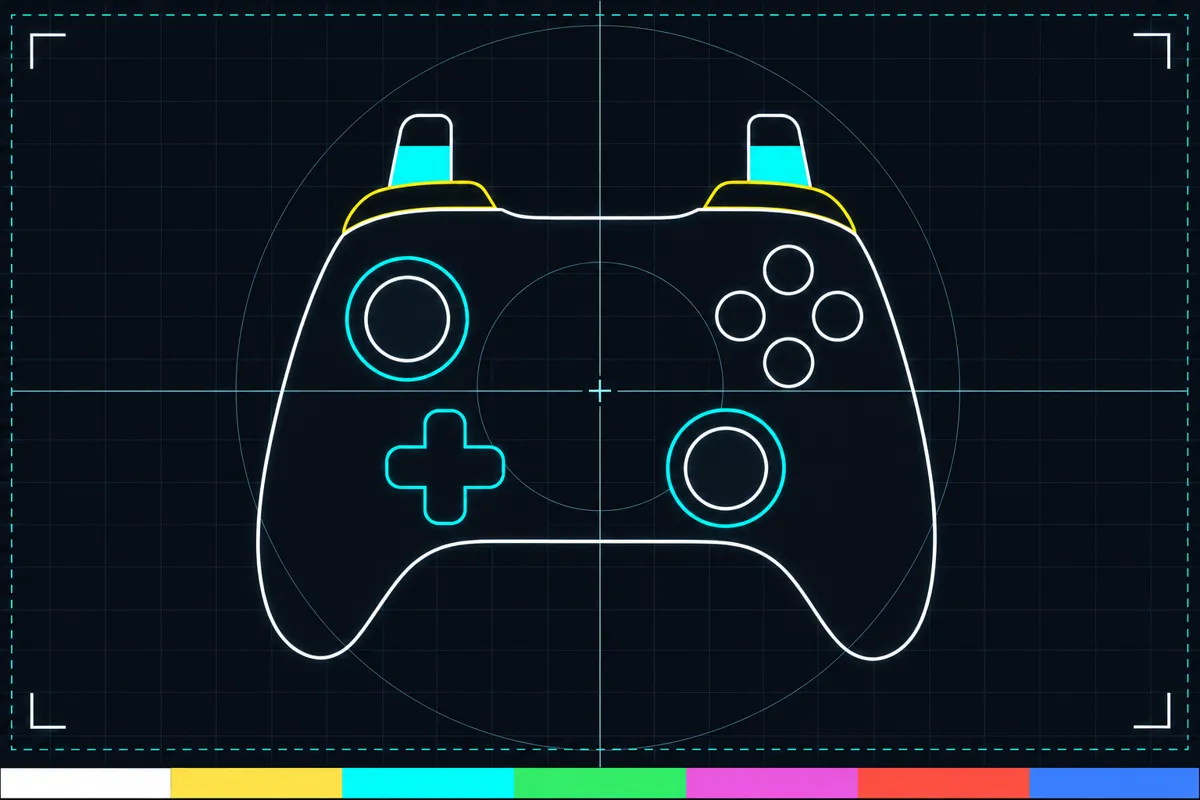
What this test checks
This Xbox controller tester shows the controls that the browser reports while your controller is connected. Press each button, move both sticks, and pull the triggers to check whether their input appears on the page. The test uses the layout and labels for Xbox Series and Xbox One controllers.
You can connect either listed model by USB or Bluetooth. The test follows the controller mapping supplied by the browser, so its button names appear in a standard order. A button may work in a game even if this page does not show it, because the page can only display inputs the browser reports.
Read the buttons, sticks, and triggers
The button labels are A, B, X, and Y; Left bumper and Right bumper; Left trigger and Right trigger; View button and Menu button; Left stick press and Right stick press; Directional button up, down, left, and right; and Xbox button. Press a control and check whether its matching label or indicator changes. Pressing a stick means clicking it down, not moving it.
Move each stick and watch its reading change as you move it in different directions. The triggers have their own readings, so pull each one and see whether the page responds. The display shows the input the browser receives; compare it with your own action rather than relying on a numeric pass range, which this test does not provide.
The Xbox Series controller's Share button is not reported by the browser mapping used here, so it will not appear as a reading.
When a reading is missing
If a button, stick, or trigger does not respond, check that the controller is connected and that you are pressing or moving the control shown on the page. A missing reading can mean the browser is not reporting that input, the controller connection is not active, or the control itself may not be working. This page cannot tell which cause applies by itself.
The page links to a controller connection fix guide. Use it if the controller does not connect or the test shows no input. If only one control is missing while other readings change, try reconnecting and check that control again.
Connection and vibration support
Both the Xbox Wireless Controller (Series X|S) and the Xbox One controller are listed with USB and Bluetooth connections. The page uses the selected model's layout and labels, connection steps, browser mapping, and vibration support data.
The Xbox One data lists vibration motors and trigger motors, and says it has no touch pad or motion sensors. Vibration support depends on the controller data and browser mapping; this page does not promise that a vibration check will be available or work in every setup.
Browser support
| Browser | Runs |
|---|---|
| Chrome and Edge on a computer | Yes |
| Firefox on a computer | PartlyNo controller vibration. |
| Safari on a Mac | Yes |
| Safari on iPhone | PartlyNo controller vibration. Needs a paired controller. |
| Safari on iPad | PartlyNo controller vibration. Needs a paired controller. |
| Chrome on Android | PartlyNeeds a paired controller. |
| Samsung Internet | PartlyNeeds a paired controller. |
| Browsers inside apps | PartlyNo controller vibration. |
Source: MDN browser-compat-data 8.1.8 · checked November 6, 2026
Questions
How do I test my Xbox controller in a browser?
Connect it by USB or Bluetooth, then press each button, move the sticks, and pull the triggers. Check the page for a matching change in each reading.
Why does my Xbox controller show no input?
The browser may not be reporting the controller, or the connection may not be active. Check the connection and use the page's linked controller connection fix guide.
Why does the Share button not show up?
The browser mapping for the Xbox Series X|S controller does not report the Share button. The Xbox One data does not list an omitted button for this test.
Can this test check stick movement and trigger input?
Yes. Move each stick and pull each trigger to see whether its reading changes. The page does not give a numeric pass range, so compare the display with the movement you make.
Does the test check controller vibration?
Vibration support comes from the controller data and browser mapping. The Xbox One data lists vibration motors and trigger motors, while the Series X|S data does not publish those details.