CH 00 · All at once
Device test
Run a browser test of your microphone, camera, speakers, screen and any controller. Tests run in a row, and you can skip one. Nothing leaves your device unless you share the report link.
- WaitingMicrophone1
- WaitingCamera2
- WaitingSpeakers3
- WaitingScreen4
- WaitingController5
Checking
Say a few words, as you would on a call.
Look at the picture. The size and frame rate are measured.
You will hear one beep on the left, then one on the right.
Reading the screen.
Screen -- · --
Press a button on your controller. No controller? Skip.
- Microphone: listens for four seconds and rates the level.
- Camera: shows your picture and measures size and frame rate.
- Speakers: plays a beep on the left, then on the right.
- Screen: reads the size and the refresh rate.
- Controller: looks for a game controller; press a button on it.
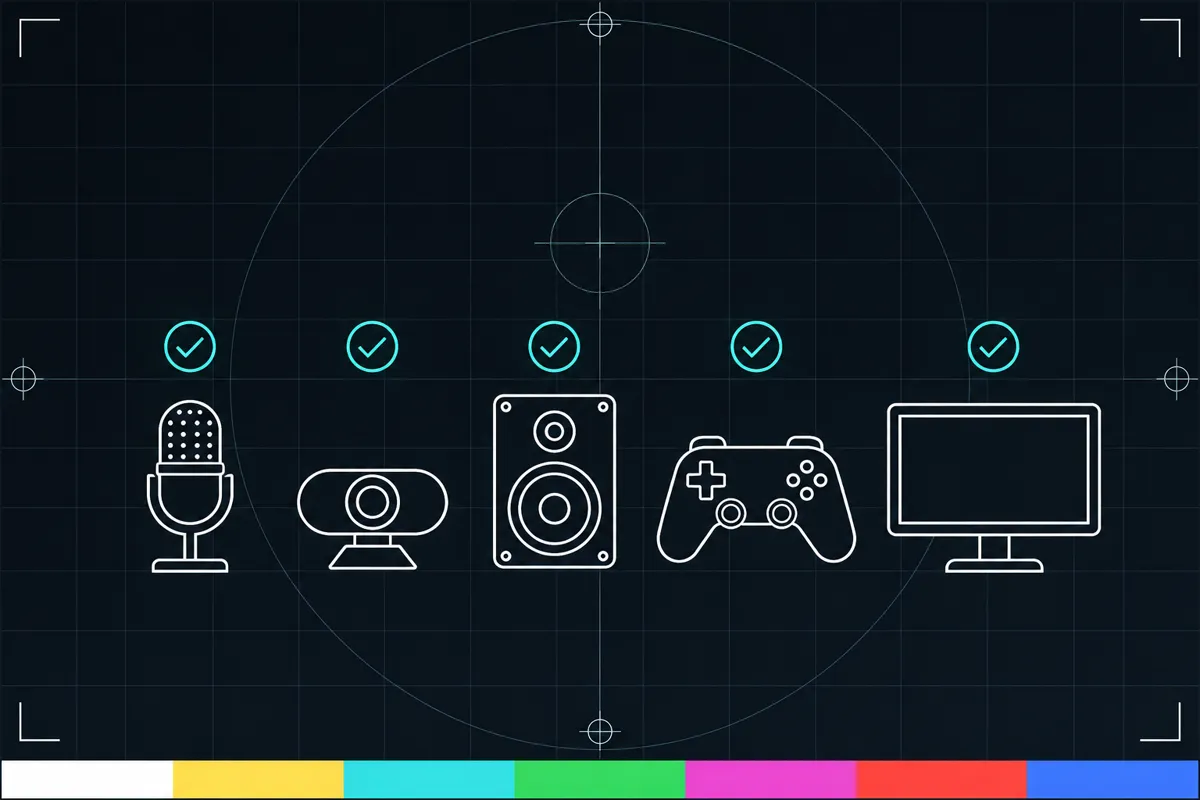
What the device test checks
This device test checks several parts of a laptop or other device in one place. It tests the microphone, camera, speakers and screen, then checks for a connected controller. The page runs each test in a row, so you can see the results together in one report.
Each test can be skipped. For example, you can skip a camera check if your device has no camera, or skip a controller check if you do not use one. The report shows a verdict and key readings for each device that was tested.
What each result means
The report gives each device a verdict and its key numbers. Read the verdict as the test’s summary of that device’s check. The numbers provide more detail about what the test measured, but the report does not set a universal pass level for every device.
For the microphone, the page listens and measures how loud the sound is. A low or missing reading can mean the test did not pick up sound; check that the microphone is connected and that sound is reaching it. For the camera, the test checks whether it can show an image. If no image appears, the camera may be unavailable or the page may not have access to it.
The speaker check plays sound and measures its level. If the reading is missing or you cannot hear the sound, check that the speakers are connected and turned on. The screen check shows a visual test, so look for whether its patterns and colors appear as expected. The controller check looks for a connected controller; no result may mean none is connected or detected. These checks do not measure whether your device is suitable for every task.
When a result looks bad
A bad verdict or missing reading means that part of the test did not return the expected result. It can point to a disconnected device, a device that is unavailable, or a test that could not access or measure it. It does not identify the exact cause.
Check the device connection, make sure it is switched on, and try the test again. If the same result remains, check whether the device itself works outside this page or use another way to test that device.
Your report and sharing
After the checks, the page puts the verdicts and key numbers into a one-page report. You can share the report with a link. The link carries the result in its address, and it does not include device names unless you choose to include them.
A shared report opens with a “run yours” option on the first screen, so another visitor can start their own test. You can also save the report as an image. The page draws that image in your browser.
Browser support
| Browser | Runs |
|---|---|
| Chrome and Edge on a computer | Yes |
| Firefox on a computer | Yes |
| Safari on a Mac | Yes |
| Safari on iPhone | Yes |
| Safari on iPad | Yes |
| Chrome on Android | Yes |
| Samsung Internet | Yes |
| Browsers inside apps | PartlyMany apps block the camera and mic here: open the page in your browser. |
Source: MDN browser-compat-data 8.1.8 · checked November 6, 2026
Questions
What does this laptop test check?
It checks the microphone, camera, speakers and screen, then checks for any controller. The checks run in a row, and you can skip individual tests.
Why is my microphone reading low or missing?
The test listens and measures how loud the sound is. A low or missing reading means it did not pick up much sound; check that the microphone is connected and that sound reaches it.
Why does the camera test show no image?
The camera check looks for an image from the camera. No image can mean the camera is unavailable or the page could not access it. Check the connection and try again.
Why can’t I hear the speaker test?
The speaker check plays sound and measures its level. If you cannot hear it or see a reading, check that the speakers are connected and turned on, then repeat the check.
Can I skip a test I do not need?
Yes. Each check can be skipped. Skip tests for devices you do not have or do not want to check.
What happens when I share the report?
The link carries the test result, and device names are left out unless you choose to include them. A shared report opens with a “run yours” option, so the next visitor can run their own checks.