How to fix stick drift
Stick drift often starts with a calibration issue, dirt, or wear around a thumbstick. Run the stick drift test with the controller untouched to see whether a stick moves at rest; nothing leaves your device.
Run the test first
Stick drift test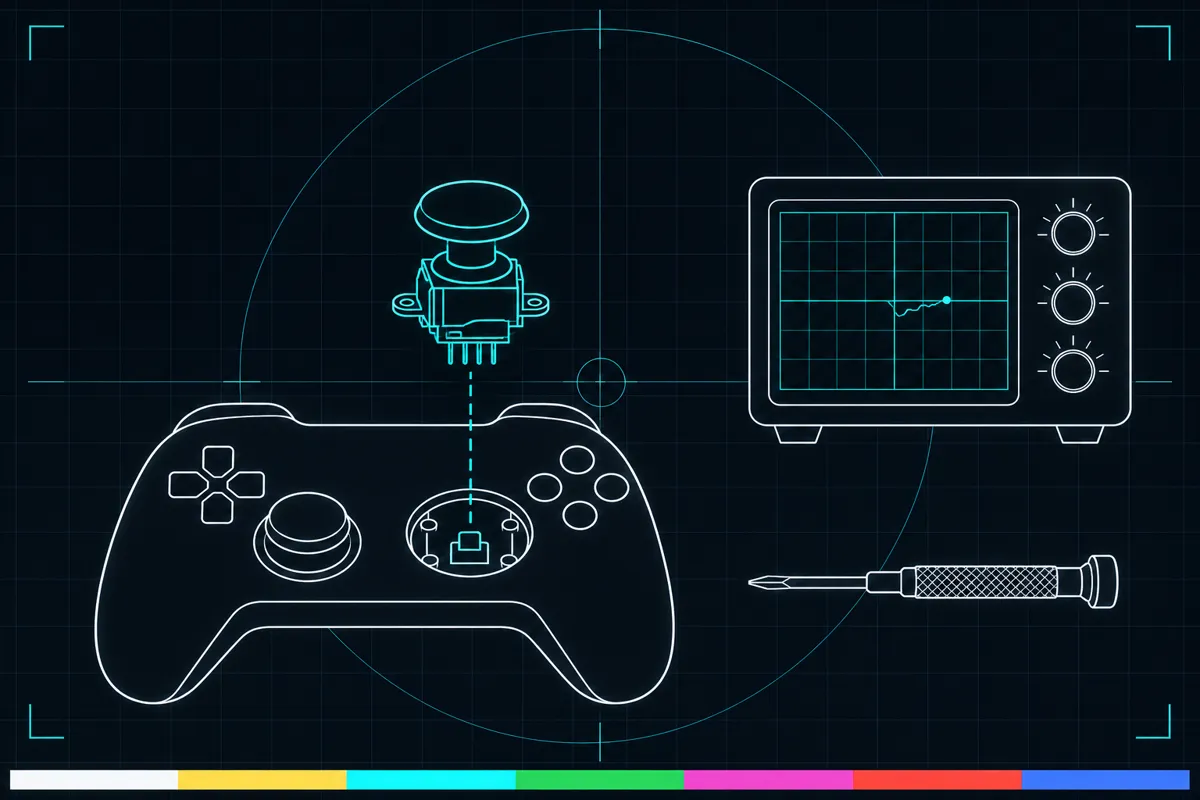
What the stick drift test checks
The test reads the controller's stick position while you leave the thumbsticks alone. If a stick's reading moves while you are not touching it, the controller is sending movement input at rest. The test helps you see whether the left stick, right stick, or both show movement.
A moving reading points to drift, but it does not identify the cause. Use the result to choose the drift case on this page, then follow the steps shown for your controller platform. If the reading stays still, this test did not show drift during that check.
Tell which case you have
Open the linked stick drift test and keep your hands off the sticks. Watch the left and right readings. If one moves at rest, note which one; if both move, note both.
That can help separate a controller issue from a problem limited to that game. Use the steps for your platform, since the actions on the page differ between Xbox and PlayStation.
Why stick drift happens
Calibration can make a stick's resting position register incorrectly. Dirt around the thumbstick can also interfere with its movement. The listed Xbox steps address calibration and cleaning, along with remapped buttons and controller firmware, because settings or firmware can affect the input you see.
If drift continues after those checks, a worn or damaged stick is another possible cause. The test shows what the controller reports, but it cannot tell whether dirt, calibration, settings, firmware, or physical wear caused the reading.
What to do after a bad reading
If a reading moves at rest, start with the steps listed for your platform and check the test again afterward. On Xbox, the page steps cover recalibration, checking whether one game is affected, cleaning around the thumbsticks, remapped buttons, and firmware. Follow them in the order shown.
For PlayStation, the listed steps are to reset the controller, update the PS5, then ask for repair. If drift remains after the available steps, stop repeating them and use the repair route included on the page.
By what the tester showed
Drift
No steps for this system in this section. Choose All systems to see them.
Recalibrate the sticks in the Xbox Accessories app
Update the controller firmware first, then recalibrate the left or right stick and follow the screen. It works for the Xbox Wireless Controller and the Elite Series 2 only. Microsoft says it cannot fix drift from normal wear.
Source: Using the XBOX Accessories recalibration tool, Xbox Support, checked November 6, 2026
If the recalibration does not help
Restart the controller, check whether the game lets you change the dead zone, test the controller on another device, and try another USB cable. If it drifts on every device, it needs repair or replacement.
Source: Using the XBOX Accessories recalibration tool, Xbox Support, checked November 6, 2026
Check whether only one game drifts
If the odd behavior is in one game or app only, check that game's controller configuration and calibration settings, and restart it.
Source: The buttons on my XBOX controller aren't working, Xbox Support, checked November 6, 2026
Clean around the thumbsticks
Check that nothing is stuck in the sticks. Unplug the controller and wipe it with a soft lint-free cloth lightly dampened with mild soap and water or with isopropyl alcohol of 70% or less. Never put liquid straight on the controller.
Source: The buttons on my XBOX controller aren't working, Xbox Support, checked November 6, 2026
Look for remapped buttons
If the behavior is the same in every game, the buttons may have been remapped. Check the mapping, or restore the defaults.
Source: The buttons on my XBOX controller aren't working, Xbox Support, checked November 6, 2026
Update the controller firmware
Microsoft lists a firmware update as a step for odd stick behavior. The Xbox Accessories app can do it from a PC.
Source: The buttons on my XBOX controller aren't working, Xbox Support, checked November 6, 2026
Reset the DualSense
Turn off the PS5, unplug the controller, and press the reset button in the small hole next to the Sony logo on the back with a pin for at least 5 seconds. Connect it with the official USB cable and press the PS button.
Source: How to troubleshoot DualSense wireless controller issues, Sony Interactive Entertainment (PlayStation Support), checked November 6, 2026
Update the PS5, then ask for repair
Update the PS5 system software if you can. If the reset does not fix it, choose Button or analog stick issue on the support page, which leads to PlayStation Repairs.
Source: How to troubleshoot DualSense wireless controller issues, Sony Interactive Entertainment (PlayStation Support), checked November 6, 2026
Questions
What does a moving stick reading mean?
It means the controller reports stick movement while you are not touching it. The reading does not show the cause.
Can the test tell me which stick has drift?
Yes. Watch the left and right readings while the sticks are untouched. Note which reading moves, or whether both do, then use the platform steps on this page.
Why does my controller drift in one game only?
The Xbox steps include checking whether only one game drifts. If the test reading stays still at rest but movement appears in one game, use that step to check the game-specific case.
Will recalibration fix stick drift?
Run the test again after following the page steps to see whether the reading still moves.
When should I ask for a repair?
The PlayStation steps say to update the PS5 and then ask for repair. Follow that route if the listed actions do not resolve the drift.