CH 04 · Screen
Refresh rate test
Run this refresh rate test to see measured screen Hz, timing jitter, and missed frames. Let the live test run for a few seconds, then compare its readings with the frame pattern and connection table.
Measures how often this window is redrawn, from the time stamps the browser gives every animation frame over five seconds. The result is this window's frame rate: on most screens it is the panel's refresh rate, but a browser can hold a window below it.
Frame-skip pattern for a camera photo
A white cell runs along a row of 20 cells, one cell per frame. Photograph the screen with a shutter of about 1/10 s (manual or night mode). The number of lit cells in the photo is the number of frames in that exposure; a dark cell between lit ones is a frame the browser did not draw.
Where a browser caps the rate
- Safari on iPhone and iPadAnimation frames can be held to 60 Hz on a 120 Hz screen: Low Power Mode, a battery below about 20%, heat, and a Safari setting for rendering near 60 fps all do it. Pages inside an iframe were reported held to 30 fps (WebKit bug 173434).
- Any browserA background tab, a window on a second screen with another rate, or a page inside an iframe can be held below the panel's rate. Keep this tab in front, on the screen you want to test.
The Demo runs the test in a window on this page instead of full screen, with sample values where a device would be read. Its result is labelled Demo and is never yours.
What the test measures
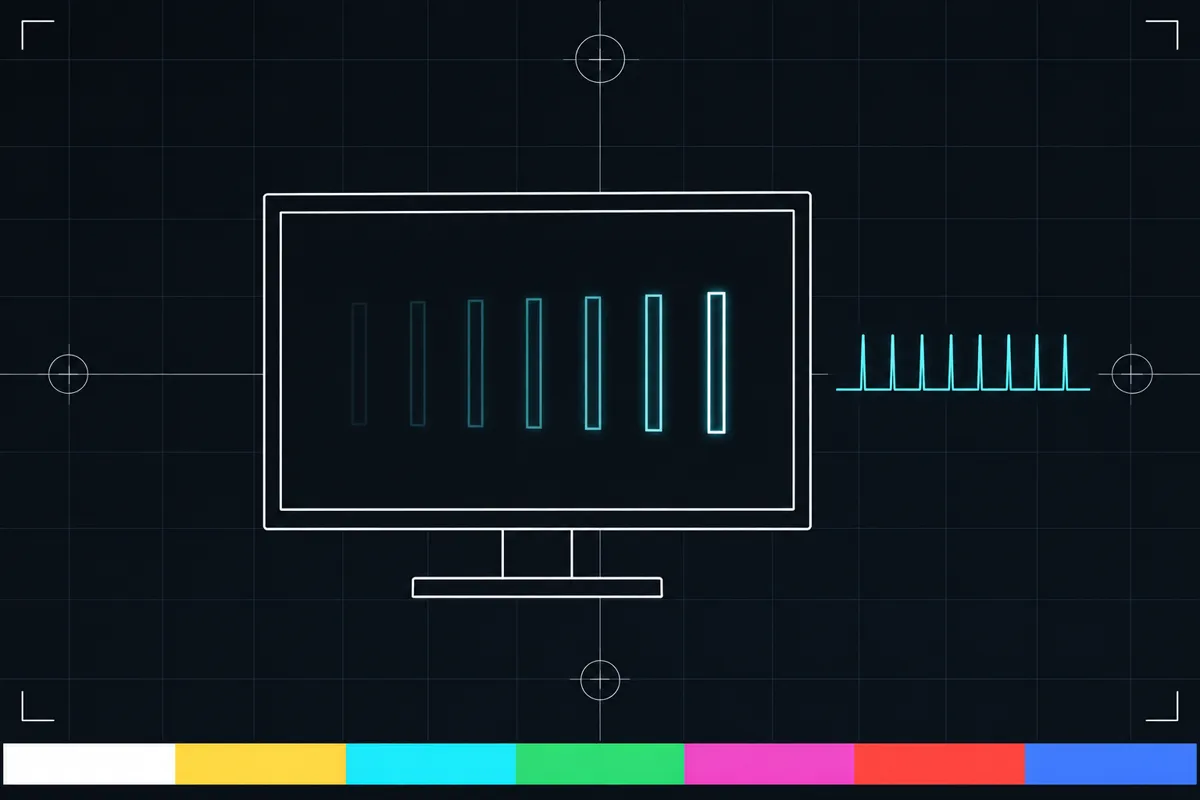
This Hz test measures how often your screen updates while the page is moving. It records frame times for a few seconds and uses the middle frame interval to estimate the refresh rate in Hz. The result describes what the page observed during that run.
A screen’s refresh rate and the number shown by a game or video are related ideas, but this test measures the screen’s frame timing in the browser. It does not measure every app or every moment. The page may show a different result if the browser limits how often it can update the display.
The test also reports timing jitter and missed frames. These readings help you see whether frame timing stayed even during the test. They do not, by themselves, identify which part of the device or connection caused an uneven result.
Understanding the readings
Measured Hz is the refresh rate estimated from the frame intervals. A higher number means the page observed more screen updates in the same amount of time. Read it as a measurement from this browser run, not as a promise that every program will show the same rate.
Jitter describes changes in the time between observed frames. A steadier timing pattern means the intervals were more alike during the run. If jitter is noticeable, the display or browser did not deliver evenly spaced frames for this measurement, but that alone does not show why.
Missed frames are frames the test expected but did not observe in its timing sequence. The page also shows a frame-skip pattern intended for a camera photo. A repeated gap in that pattern can help make skipped updates visible, though the photo is a separate view from the timing estimate.
The display links table uses the resolution reported for your display to show which cable and port combinations can carry that resolution at different rates. Check that information alongside the measured Hz. Browser rate limits can affect the result, and the page shows caveats from its data when they apply.
When the result looks low or uneven
A lower measured rate than you expected can mean the browser capped the page’s update rate. It can also reflect the timing seen during that particular run. This reading alone cannot tell you whether the screen, cable, port, or browser is responsible.
Uneven timing or missed frames means the page did not see a steady sequence of updates. Compare the measured Hz with the display links table for your resolution, and read any browser caveat shown on the page. The table can help you check whether the connection has a listed rate limit for that resolution.
If the result still seems wrong, use the page’s change refresh rate fix guide. It covers what to check next. A guide cannot guarantee that a change will improve the result, because the test does not identify the cause on its own.
How to read the connection table
The connection table is specific to the resolution shown for your display. It lists cable and port limits by rate, so use the row or entry that matches your resolution before comparing it with measured Hz. A connection limit can help explain why a display may not run at a rate you expected.
The table is reference information, while measured Hz, jitter, and missed frames come from the live browser test. Those parts answer different questions: the table describes listed connection capacity, and the live readings describe frame timing observed by this page. A browser cap caveat can also affect what the test reports.
Use all the readings together rather than treating one number as a pass or fail. If your expected rate and the measured rate differ, check the connection information and the caveat before using the fix guide.
Browser support
| Browser | Runs |
|---|---|
| Chrome and Edge on a computer | Yes |
| Firefox on a computer | Yes |
| Safari on a Mac | Yes |
| Safari on iPhone | PartlyOften limited to 60 frames a second by a Safari setting or Low Power Mode. |
| Safari on iPad | PartlyOften limited to 60 frames a second by a Safari setting or Low Power Mode. |
| Chrome on Android | Yes |
| Samsung Internet | Yes |
| Browsers inside apps | Yes |
Source: MDN browser-compat-data 8.1.8 · checked November 6, 2026
Questions
What does a refresh rate test show?
It estimates screen refresh rate in Hz from frame timing over a few seconds. It also shows timing jitter, missed frames, and a frame-skip pattern. These readings describe the browser test run.
Why is my measured Hz lower than expected?
The browser may cap how often the page updates, or the run may have observed a lower rate. Check the browser caveat shown on the page and compare the result with the display links table for your resolution. The reading alone does not identify the cause.
What do jitter and missed frames mean?
Jitter means the time between observed frames changed during the run. Missed frames are expected updates the test did not observe in its timing sequence. These readings show uneven timing, but do not say which device or connection part caused it.
How can I check whether my cable limits the refresh rate?
Find your display’s resolution in the display links table. It lists which cable and port combinations carry that resolution at different rates. Compare its entries with the measured Hz and read any browser caveat.
Is this a camera test?
No. The live measurement uses frame timing in the browser. The page also shows a frame-skip pattern intended for a camera photo, which gives a visual way to inspect skipped updates.
What should I do if the result looks wrong?
Compare the measured Hz with the connection table and check for a browser rate limit caveat. Then open the page’s change refresh rate fix guide for next steps. The result does not guarantee that a change will fix the issue.