CH 04 · Screen
Monitor Ghosting Test
Start the ghosting test to watch shapes and text move across the screen. It checks motion blur, overdrive trails and inverse ghosting, with a guide for taking pursuit photos.
Six strips of different contrast, each with a block or a word gliding across at a fixed speed. A screen that is slow to change its pixels leaves smears or trails behind the shapes; one pushed too hard (overdrive) leaves a bright or dark halo. Tap or press an arrow key to change the speed.
- The six stripsWhite on black and black on white are the biggest steps. Light grey and dark grey on mid grey are the small steps where most panels are slowest. Dark grey on near-black is where VA panels smear most. The last strip moves text.
- Motion blurSoft edges on every strip alike. It comes from the eye following a held image and from slow pixels, and it grows with speed.
- Ghosting trailA faint copy of the shape left behind it, strongest on the dark strips. That is slow pixel response.
- Inverse ghostingA bright or dark halo in front of or behind the shape, strongest on the light strips. The overdrive setting is too strong: try a lower one.
Pursuit photo with a still camera
Put a phone on a tripod or a stack of books, set manual mode with a shutter of about 1/10 s and sweep it sideways at the speed of a shape while you take the photo. The camera then follows the shape the way your eye does. Soft edges in the photo are blur; a faint second copy is ghosting. Compare the same strip at the same speed.
Speeds are snapped so that each frame moves a shape by a whole number of device pixels at your measured frame rate. The exact speed, the step per frame and the rate are printed in the corner of the strips.
The Demo runs the test in a window on this page instead of full screen, with sample values where a device would be read. Its result is labelled Demo and is never yours.
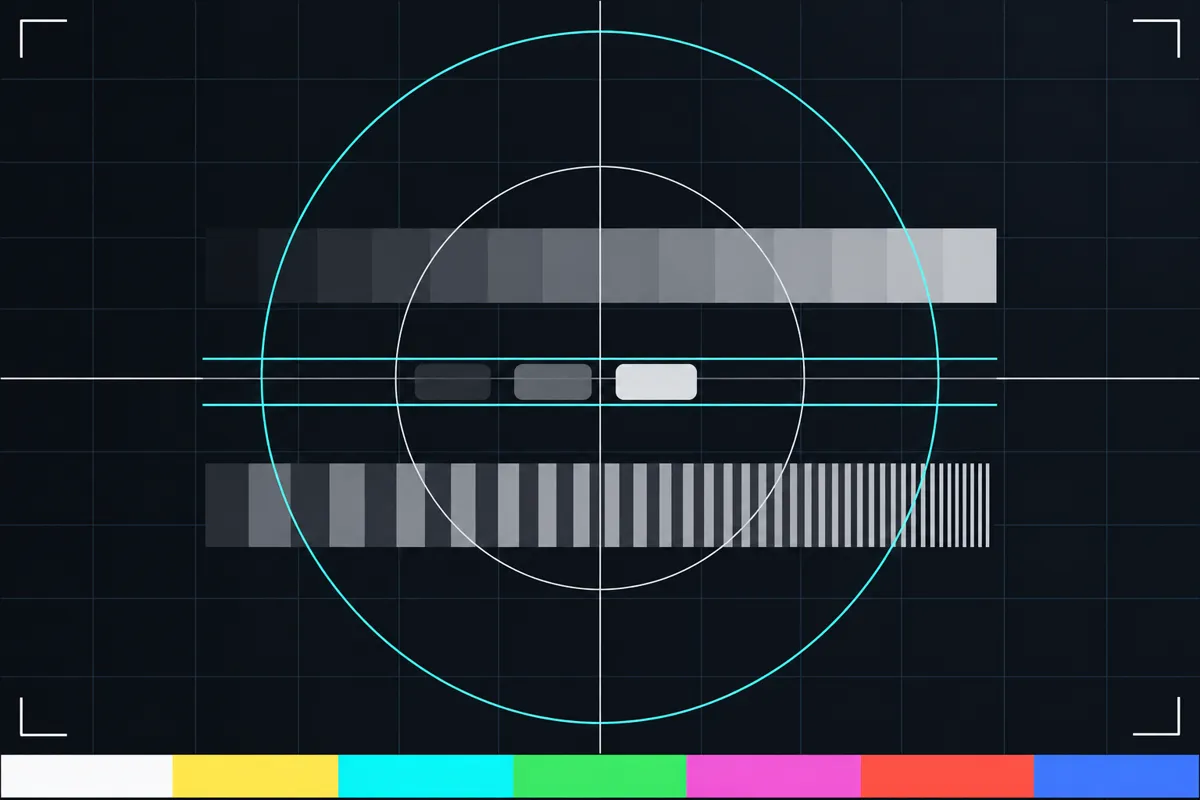
What the test checks
The test moves shapes and text across your screen at set speeds, measured in pixels per second. It shows rows with different contrast so you can see how motion looks under more than one contrast condition.
Look for blur around moving edges, trails that follow or lead an object, and changes in the appearance of text. The test can help you see these effects on your display, but what you notice depends on the screen and how you view it.
The test speeds respect the frame rate measured while it runs. If the display cannot keep up with a chosen motion, the movement you see may differ from the intended motion.
Read the moving targets
Motion blur looks like a moving shape or letter has a soft or smeared edge. Compare its moving appearance with the same kind of edge at a different contrast row. More visible smearing means the object is harder to follow clearly while it moves in this test.
Overdrive trails are extra marks behind or around a moving target. Inverse ghosting is a bright or otherwise unusual trail that can appear ahead of, or beside, the target. These are visual clues to how the screen handles motion; the test does not give a single pass or fail threshold.
The pursuit-camera guide explains how to follow a moving target with a camera for a photo. A still-camera photo may capture motion differently from what your eyes see, so use the guide when you want to inspect a pursuit photo alongside the live motion.
When the result looks bad
If moving targets look heavily blurred, or you see strong trails, first compare different contrast rows and watch the motion again. Check whether the effect appears across the targets or only in particular rows. The test gives visual evidence, not a numeric rating for whether a display is good or bad.
If a trail or blur stands out, check the display's motion settings and compare the same targets again after any change. A result can vary with the screen and its current settings, so one viewing does not establish that the display is faulty.
What this test can tell you
The ghosting test lets you inspect blur, overdrive trails and inverse ghosting while shapes and text move at set speeds. Different contrast rows make it easier to compare how motion looks across the test card.
It cannot assign a universal quality score or say whether every display will look the same. Use it to notice visible motion effects on your own screen, then consider those observations with how you use the display. The pursuit-camera guide is for making a still photo of motion, not for changing what the test measures.
Browser support
| Browser | Runs |
|---|---|
| Chrome and Edge on a computer | Yes |
| Firefox on a computer | Yes |
| Safari on a Mac | Yes |
| Safari on iPhone | PartlyNo full screen on iPhone: the test fills the window instead. Often limited to 60 frames a second by a Safari setting or Low Power Mode. |
| Safari on iPad | PartlyOften limited to 60 frames a second by a Safari setting or Low Power Mode. |
| Chrome on Android | Yes |
| Samsung Internet | Yes |
| Browsers inside apps | Yes |
Source: MDN browser-compat-data 8.1.8 · checked November 6, 2026
Questions
What is monitor ghosting?
Monitor ghosting is a visible trail or blur around a moving object on the screen. This test helps you look for trails, including overdrive trails and inverse ghosting, as well as motion blur.
How do I use this ghosting test?
Watch the shapes and text move, then compare how clearly their edges appear in rows with different contrast. The test runs targets at set speeds, and those speeds respect the frame rate measured while it runs.
What does inverse ghosting look like?
It can look like a bright or unusual trail ahead of, or beside, a moving target. Compare the effect across the moving targets and contrast rows; the test does not set a numeric threshold for it.
Why do I see blur instead of a clear target?
A moving edge may look soft or smeared during the test. Compare the rows and watch again, since the test shows motion at set speeds and different contrast levels. It does not tell you the cause of a particular result.
Can I use a photo to check monitor ghosting?
Yes, the page includes a pursuit-camera guide for following a moving target while taking a photo. It is a still-camera guide, so a photo may show motion differently from what you see while watching the screen.
Does this test tell me if my monitor is faulty?
No. It shows motion blur, overdrive trails and inverse ghosting for you to inspect, but it does not provide a universal pass or fail threshold. A visible effect alone does not establish that the display is faulty.