CH 05 · Input and sensors
Touch screen test
Touch the screen to see each contact point and its details. Drag across the grid to check for areas that may not respond; nothing leaves your device.
No touch screen at hand? Watch the test run on simulated touches.
Press Start, then put fingers on this screen, as many as you can. Each touch is drawn with its number.
- Touches now
- –
- Most at once
- –
- The system says it supports (maxTouchPoints)
- –
- Pointer type
- –
- Touch events
- –
- Ignored pointer
- –
The count is how many touches actually reached the page at once. The system's figure (maxTouchPoints) is what it says the screen can do; the two can differ, and some phones and browsers also take over gestures with three or more fingers. Mouse input is ignored. In grid mode only cells that real touch events landed in are filled, so drag slowly: a fast swipe can skip cells without any fault in the screen.
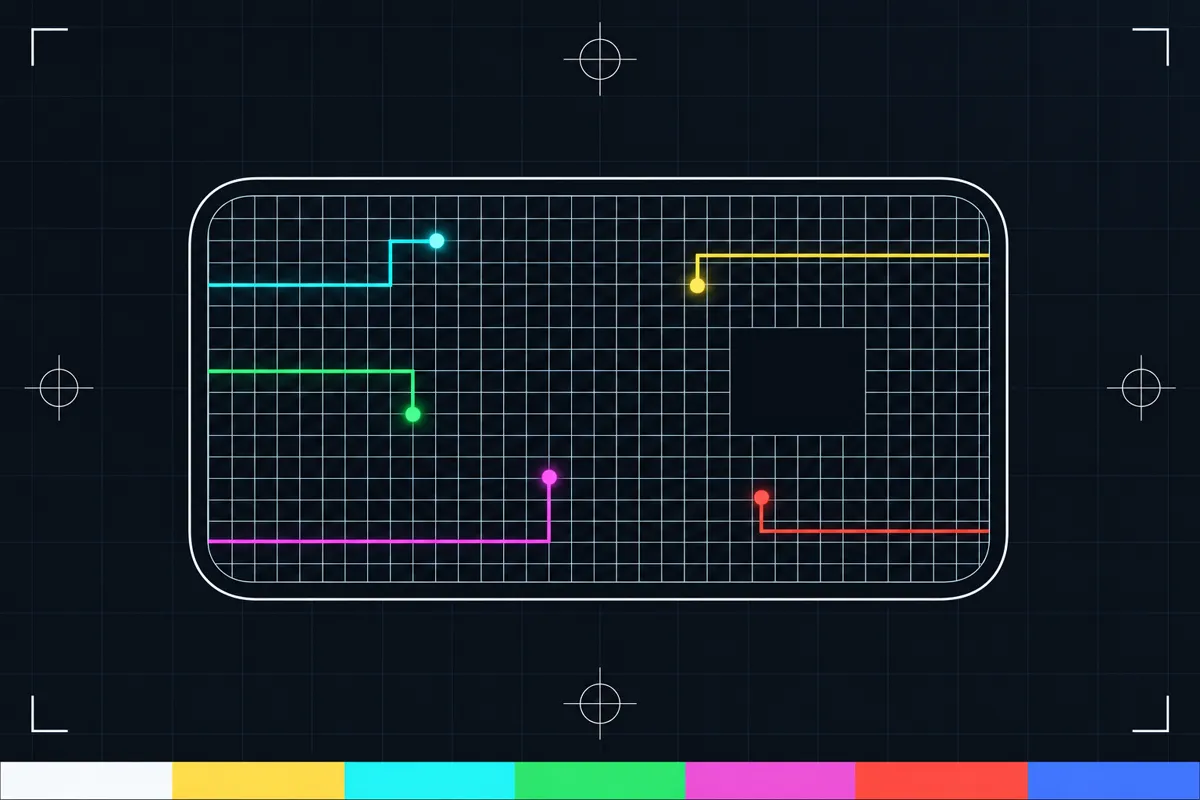
What the touch screen test checks
This touch screen test shows where the screen detects your finger. Each active touch appears on the full-screen test area with its own ID. When reported, the reading also shows the touch coordinates and pressure.
The test counts the most touches it detects at the same time. It compares that count with the device’s reported maximum touch-point count. Use grid mode as a second check: dragging fills the cells you reach, while cells left unfilled can reveal areas that did not register your touch.
Read the touch points and grid
A touch point marks a contact the screen has detected. Its ID helps distinguish it from other active contacts. Coordinates show where the contact occurred on the test area. Pressure appears only where the device reports it, so a blank pressure reading does not by itself mean the touch failed.
The simultaneous-touch count records the highest number of active contacts detected together during the test. The comparison value is the maximum number of touch points reported by the device. A count below that value can mean the screen or device handled fewer contacts during your test; it does not show why.
In grid mode, filled cells mark places where dragging registered. Unfilled cells are possible dead zones, but they can also be areas you did not cross. Drag over the full grid, including the edges and corners, before judging whether an empty cell points to a problem.
When a result looks wrong
If a touch point does not appear, or a part of the grid stays empty after you drag over it, repeat the check across that area. Make sure your finger made contact with the screen and that you covered the empty cells. A missed contact can come from the way you touched, as well as from an area that is not responding.
If the same area remains unfilled when you cross it again, the screen may not be registering touches there. If the simultaneous-touch count stays below the reported maximum, try the test again with the number of fingers you intended to use.
Run the test across the screen
Start by touching different places on the test area and watch for a point with an ID at each contact. For the multiple-touch reading, place several fingers on the screen at once and observe the highest count shown. Then switch to grid mode and drag across the entire grid so you can compare filled and unfilled cells.
Use gentle, steady contact and repeat any part of the check that is unclear. The readings describe what the screen registered during this test. They do not provide a pass threshold, so look for touch points where you expected them and check whether the grid fills where you dragged.
Browser support
| Browser | Runs |
|---|---|
| Chrome and Edge on a computer | PartlyNeeds a touch screen. |
| Firefox on a computer | PartlyNeeds a touch screen. |
| Safari on a Mac | NoMacs have no touch screen. |
| Safari on iPhone | Yes |
| Safari on iPad | Yes |
| Chrome on Android | Yes |
| Samsung Internet | Yes |
| Browsers inside apps | Yes |
Source: MDN browser-compat-data 8.1.8 · checked November 6, 2026
Questions
How do I test whether my touch screen works?
Touch several places on the test area and check whether each contact appears with an ID. Then drag across the grid and look for cells that stay empty after you crossed them. Repeat any missed area to see whether the result is consistent.
What do the touch coordinates mean?
Coordinates show the detected contact location on the test area. They help you see where the screen registered your finger. A missing point means the touch was not detected in that moment.
Why is no pressure value shown?
Pressure appears only where the device reports it. If no pressure value is shown, the test may still detect and display the touch point. Check the point and coordinates as well.
What does the maximum touch count mean?
The test records the most simultaneous touches it detects and compares that count with the device’s reported maximum. A lower count means fewer contacts were registered during the check, but it does not explain the cause. Repeat the test with several fingers touching at once.
Does an empty grid cell mean the screen is broken?
Not by itself. An empty cell may be an area you did not cross, or a place where a touch did not register. Drag across it again and check whether it remains unfilled.
Is this a hearing or health test?
No. This page checks touch input on a screen. It does not test hearing or assess health.