CH 04 · Screen
Dead Pixel Test
This dead pixel test fills your screen with solid colours so you can spot pixels that do not change. Tap the screen or use the arrow keys to move through the colours.
Six plain colours fill the whole display, one after another. Look at each from about an arm's length in a dim room and note any spot that does not belong. Press Start, then tap, press Space or use the arrow keys to change the colour. Escape leaves and asks what you saw.
- Dead pixelA pixel that stays dark on every colour. It is easiest to see on white, where it is a small black dot.
- Stuck pixelA pixel that shows one colour on every field: a red, green or blue dot (or yellow, cyan or magenta when two sub-pixels are stuck). It stands out on fields of the other colours and on black.
- Hot (always lit) pixelA pixel that stays white on every field. It is easiest to see on black.
- Not a pixel at allDust, a hair or a smudge on the glass is visible on white mostly, has soft edges and often wipes off with a dry microfibre cloth. A bad pixel is a sharp square dot that does not wipe off.
The Demo runs the test in a window on this page instead of full screen, with sample values where a device would be read. Its result is labelled Demo and is never yours.
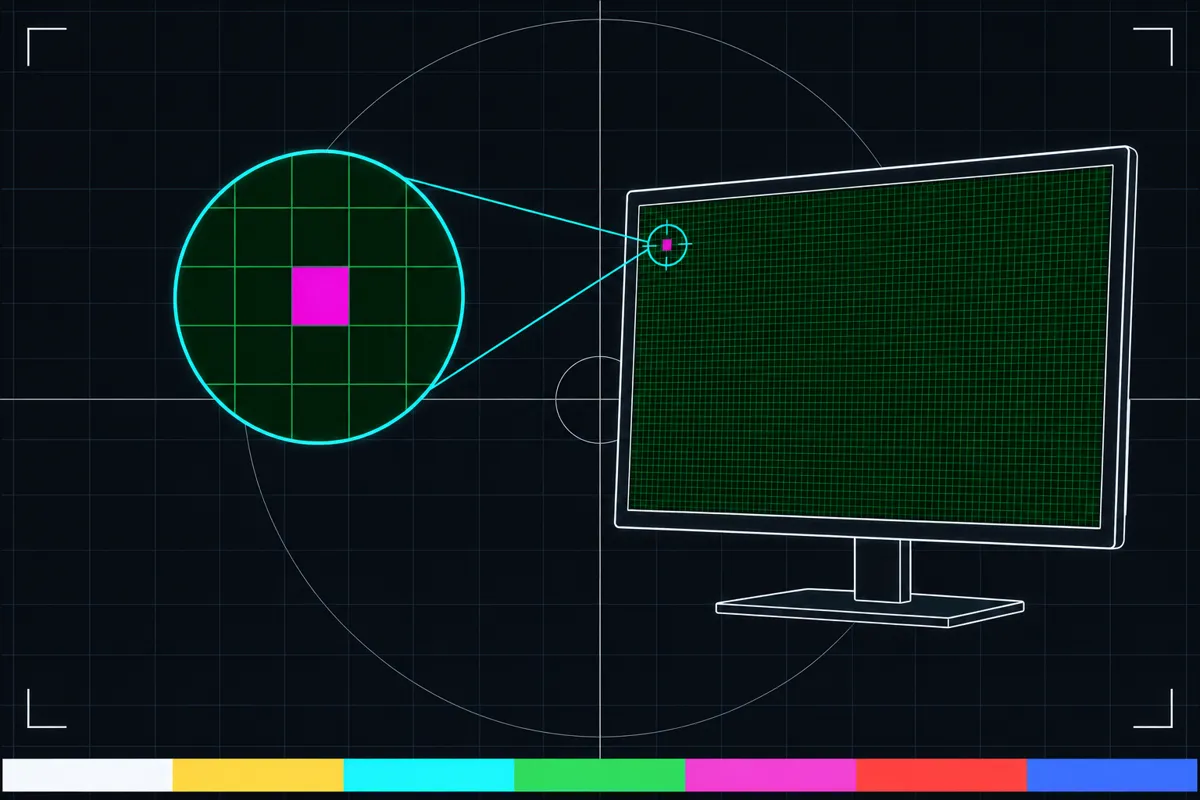
What the colour test checks
The test shows full-screen black, white, red, green, blue, and grey. Look across the whole screen as each colour appears. A pixel that stays different from the surrounding area may be dead, stuck, or hot.
Tap the screen or press an arrow key to change the colour. You can also use the timer to cycle through the colours. The test hides the cursor and its controls while the colour fills the screen, so check that you know how to leave the test before you start.
What each pixel result means
A dead pixel is always dark, so it stays black or looks like a dark dot when the screen shows a lighter colour. A stuck pixel stays one colour, such as red, green, or blue, instead of changing with the rest of the screen.
A hot pixel is always lit. It may look like a bright dot when the rest of the screen is dark. Compare the same spot across several colours: a dot that remains dark points to a dead pixel, one that holds a colour points to a stuck pixel, and one that stays lit points to a hot pixel.
The test does not give a score or set a pass threshold. Judge the result by whether a small spot stays different from its neighbours as the full-screen colour changes.
If you find a spot that does not change
First, view the same area on several colours. A spot can be harder to see against a colour that matches it, so check both light and dark screens. If it still looks different in the same place, the display may have a pixel that is dead, stuck, or hot.
The test can show a persistent spot, but it cannot change the display or tell you why the pixel behaves that way. If the result is unclear, repeat the colour cycle and compare the spot in good light.
Using the test on an iPhone
On an iPhone, the browser cannot make the page itself use the Fullscreen feature. The test instead places a fixed layer across the screen, which fills the visible page area while the browser remains in use.
For a more app-like full-screen view, the page advises adding it to the home screen. You can still change colours by tapping or let the timer move through them.
Browser support
| Browser | Runs |
|---|---|
| Chrome and Edge on a computer | Yes |
| Firefox on a computer | Yes |
| Safari on a Mac | Yes |
| Safari on iPhone | PartlyNo full screen on iPhone: the test fills the window instead. |
| Safari on iPad | Yes |
| Chrome on Android | Yes |
| Samsung Internet | Yes |
| Browsers inside apps | Yes |
Source: MDN browser-compat-data 8.1.8 · checked November 6, 2026
Questions
How do I test my screen for dead pixels?
Open the test and move through black, white, red, green, blue, and grey. Look for a dot that stays dark or otherwise different in the same place across the colours.
What is the difference between a dead pixel and a stuck pixel?
A dead pixel stays dark. A stuck pixel stays on one colour. Check the spot against several full-screen colours to tell which pattern it follows.
What does a hot pixel look like?
A hot pixel stays lit, so it can appear as a bright spot when the rest of the screen is dark. Compare its appearance as the test changes colours.
How do I change the test colour?
Tap the screen or use an arrow key to move between colours. You can also start the timer to cycle through them.
Why does the test not look fully fullscreen on my iPhone?
The browser's Fullscreen feature does not cover pages on an iPhone. The test uses a fixed layer across the visible page, and advises adding the page to the home screen for a more app-like full-screen view.
Does this test fix dead pixels?
No. It shows colours to help you spot pixels that stay dark, keep one colour, or stay lit.