CH 04 · Screen
Stuck Pixel Fix
Use a movable patch of flashing colours to check a stuck screen pixel. Change the patch size and speed, place it over the pixel, then choose to start after reading the photosensitivity warning. Nothing leaves your device.
Photosensitivity warning. This tool flashes bright colours. Flashing more than three times a second fails the web's accessibility limit (WCAG 2.3.1) because it can trigger seizures in people with photosensitive epilepsy. Do not use it if you or anyone near you has had seizures or is sensitive to flashing. Nothing flashes until you confirm on the next screen.
Move a small patch of rapidly changing primary colours over a pixel that stays lit in one colour, and leave it for a few minutes. The idea is that cycling the colours can nudge a stuck sub-pixel loose.
- How to use itPress Start and confirm the warning. Drag the patch over the pixel and make it a little larger than the pixel. The arrow keys nudge it by one pixel (Shift: ten); plus and minus resize it.
- What to expectMany stuck pixels never respond, and a dead pixel (dark on every colour) cannot be fixed this way. We know of no maker that offers this as a repair and no controlled study that shows it works; reports of success are anecdotes.
- AfterwardsCheck the pixel on the dead pixel test's fields. If nothing changed after ten minutes, stop: the maker's warranty rules are on the dead pixel policy page.
- StoppingExit, Escape or Pause stops the flashing at once. On an OLED screen, long flashing can leave a faint shadow: keep it short.
Three a second or fewer: within the WCAG limit, and usually too slow to do anything.
The Demo runs the test in a window on this page instead of full screen, with sample values where a device would be read. Its result is labelled Demo and is never yours.
What this test does
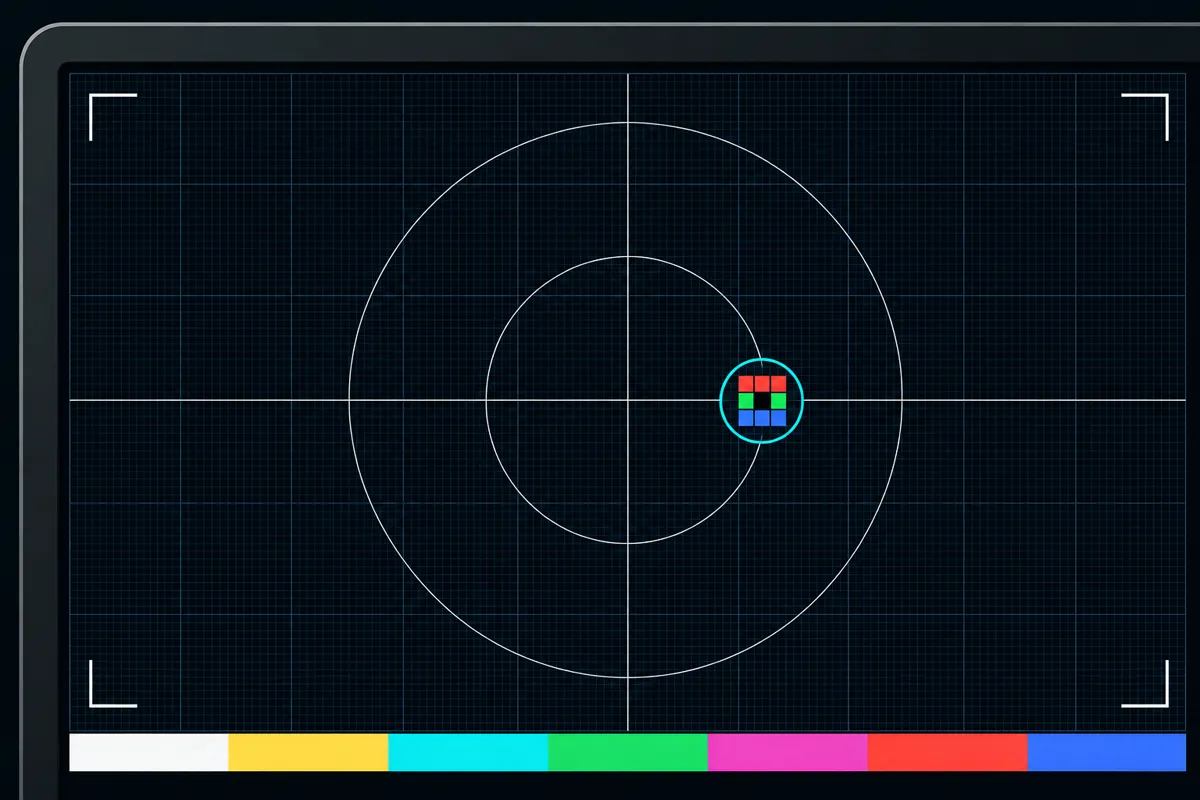
The test shows a small patch that flashes random primary colours. You can move it over the pixel you want to check, change its size, and control its speed. The patch does not start on its own: you choose whether to start it after the photosensitivity warning.
The flashing gives the pixel repeated colour changes. This may help with a stuck pixel, but it is not a certain fix.
Read the patch and its controls
The flashing patch is the test area. Move it so it covers the pixel you want to check. Make the patch larger if needed to cover the spot, or smaller to keep it close to that spot.
The speed control changes how quickly the colours flash. The test does not give a recommended speed or a pass score. Watch the pixel while the patch runs, then stop if you do not want to continue. A pixel that remains the same colour or dark may still be stuck or dead; this test cannot confirm the cause.
Flashing and photosensitivity
The page shows a photosensitivity warning before the flashing starts. Read it before choosing to start. Flashing above 3 times per second fails WCAG 2.3.1, so this test states that plainly.
Do not start if you are concerned about flashing. You can leave the test stopped. If you start and feel uncomfortable, stop the flashing.
If the pixel still looks wrong
A bad result means the pixel still appears unchanged, dark, or a different colour while the patch flashes. That can mean the pixel is stuck or dead, but the test cannot tell which. It also cannot promise to fix either problem.
Check the same spot with the patch stopped and make sure the patch was placed over it.
Browser support
| Browser | Runs |
|---|---|
| Chrome and Edge on a computer | Yes |
| Firefox on a computer | Yes |
| Safari on a Mac | Yes |
| Safari on iPhone | PartlyNo full screen on iPhone: the test fills the window instead. |
| Safari on iPad | Yes |
| Chrome on Android | Yes |
| Samsung Internet | Yes |
| Browsers inside apps | Yes |
Source: MDN browser-compat-data 8.1.8 · checked November 6, 2026
Questions
Can this fix a dead pixel?
It may help with a stuck pixel, but it does not promise to fix anything. A dark pixel may be dead, and this test cannot confirm the cause or repair it for certain.
How is a stuck pixel different from a dead pixel?
This page does not define a way to tell them apart. It can show whether a spot still looks dark or unchanged while colours flash, but that alone does not confirm whether the pixel is dead or stuck.
How do I use the flashing patch?
Move the patch over the screen spot and adjust its size and speed. Read the photosensitivity warning before you choose to start, since the patch never starts by itself.
What does the speed control do?
It changes how quickly the patch flashes random primary colours. The test gives no recommended speed or pass threshold, so use the controls cautiously and stop if you do not want to continue.
Is this a screen test with a pass or fail result?
No pass score or threshold is provided. Watch whether the spot changes with the flashing patch; if it stays dark or the same colour, it may still be stuck or dead, but the result is not a diagnosis.
Why does the page warn about flashing?
The patch flashes colours, so the page shows a photosensitivity warning before you start. Flashing above 3 times per second fails WCAG 2.3.1; you can leave the test stopped if you are concerned.