CH 05 · Input and sensors
Pen Pressure Test
Draw on the pad to test pen pressure, tilt, hover, twist and eraser input. The pressure curve and readings update as you move; nothing leaves your device.
No pen at hand? Watch the test run on a simulated one.
Press Start, then draw with your pen. Hover first to see the ring, press harder for wider, warmer lines, and flip the pen to erase if it has an eraser end.
- Pressure (0 to 1)
- –
- State
- –
- Pointer type
- –
- Tilt
- –
- Altitude / azimuth
- –
- Twist
- –
- Contact size
- –
- Highest pressure
- –
- Different pressure readings
- –
- Strokes
- –
- Seen so far
- –
Pressure is read from the pointer events your browser gets from the pen. A pen that gives only a few different readings, or always 0.5 while down, has no pressure range in this browser even if the pen has one: some drivers and apps hand the browser less than they use themselves. Tilt, twist and the eraser end depend on the pen and the system.
What the stylus test checks
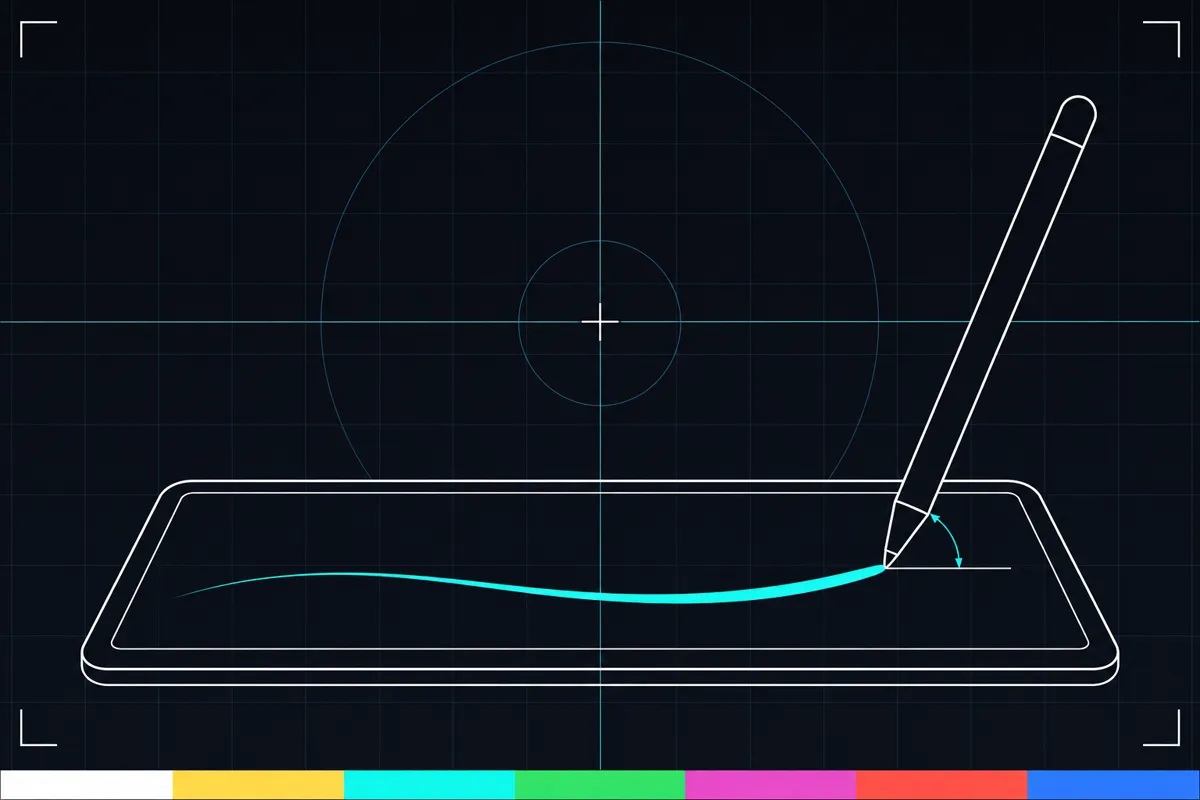
This pen pressure test reads input from a pen while you use the drawing pad. As you draw, it shows pressure and a curve that changes with the pressure readings. This can help you see whether your device sends pressure changes to the page.
The test also checks tilt, twist, hover and the eraser button when the pen reports them. Hover means the pen moves over the pad before it touches it. Tilt describes the pen's angle as you draw, while twist describes its rotation.
The test is for pens such as Apple Pencil, S Pen and Windows pens. The name of the pen alone does not tell you what readings it will send. The page shows the input it receives from your current device and browser.
Read the live results
Pressure shows how much force the pen reports while it touches the pad. The pressure curve draws those readings over time, so you can watch whether it changes as you press more or less. A flat curve or a reading that does not change may mean the pen is sending no pressure changes to this page.
Tilt appears as tilt values or as angle readings, depending on what the device sends. Twist reports pen rotation when available. These readings may stay blank or unchanged if the pen does not provide that input to the page; that does not by itself show that every pen feature is broken.
Hover shows movement before the pen touches the pad. The eraser state indicates whether the pen's eraser button is being reported. If these states do not change when you move the pen or use its button, the page may not be receiving those inputs.
When a result looks wrong
If pressure stays the same as you draw, first check whether the pad shows any pen input at all. If it does, but the curve does not change as you vary pressure, the device or browser may not be passing pressure changes to the page. The test cannot tell which part is responsible.
If tilt, twist, hover or eraser input is missing, check whether that feature is available on your pen and whether the pen sends it to this page. A blank reading means the page did not receive that input during the test; it is not proof that the pen is damaged.
What this test can tell you
This test shows the pen input that reaches the page while you draw. It can help you check whether pressure changes, angle, rotation, hover or the eraser state appear in the live readings. It does not explain why a reading is missing or confirm that another drawing tool will receive the same input.
Use the pressure curve to see changes while drawing, and compare the other readings as you move or use the pen's controls. If a feature never appears, the result points to an input that the page did not receive.
Browser support
| Browser | Runs |
|---|---|
| Chrome and Edge on a computer | PartlyNeeds a pen or stylus. |
| Firefox on a computer | PartlyNeeds a pen or stylus. |
| Safari on a Mac | NoNo pen input on this device. |
| Safari on iPhone | NoNo pen input on this device. |
| Safari on iPad | Yes |
| Chrome on Android | PartlyNeeds a pen or stylus. |
| Samsung Internet | PartlyNeeds a pen or stylus. |
| Browsers inside apps | Yes |
Source: MDN browser-compat-data 8.1.8 · checked November 6, 2026
Questions
How do I test pen pressure?
Open the drawing pad and draw with your pen. Watch the pressure reading and curve as you press more or less; the page shows the pressure changes it receives.
Why does my stylus pressure stay the same?
The pen may not be sending pressure changes to the page, or the page may not be receiving them.
Why is tilt blank or unchanged?
The page shows tilt only when the device sends tilt information during the test. If it stays blank or unchanged, the page did not receive a changing tilt reading; this alone does not show that the pen is broken.
Can this test show hover before the pen touches?
Yes. Move the pen over the pad without touching it and check whether the hover state changes. It appears only when the page receives hover input.
Does this stylus test check the eraser button?
It checks whether the pen's eraser button state reaches the page. Use the button and watch the displayed eraser state; no change means the page did not receive a different state.
Is this a test of my drawing skill or eyesight?
No. It shows pen input such as pressure, tilt and hover while you draw on the pad. It is not a hearing or health test, and it does not rate how well you draw.