CH 05 · Input and sensors
Mouse test
Use this mouse test to check each button, scroll wheel steps and direction, and the browser’s event rate estimate. Move your mouse over the test area and click or scroll; nothing leaves your device.
No mouse at hand? Watch the test run on a simulated one.
Press Start, then click, scroll and move the mouse inside this box.
- Left · button 0
- none yet
- Middle · button 1
- none yet
- Right · button 2
- none yet
- Back · button 3
- none yet
- Forward · button 4
- none yet
- Wheel steps up
- –
- Wheel steps down
- –
- Wheel tilt left · right
- –
- Last wheel step
- –
- Events received per second
- –
- Most in one second
- –
- Measured with
- –
The rate is how many pointer events your browser received each second while the mouse moved. It is not the USB polling rate of the mouse: a browser may merge moves into one event per screen frame, and Chromium's raw updates (pointerrawupdate) come closest to the mouse itself. Inside the box the context menu, the back and forward buttons and the wheel do not act on the page.
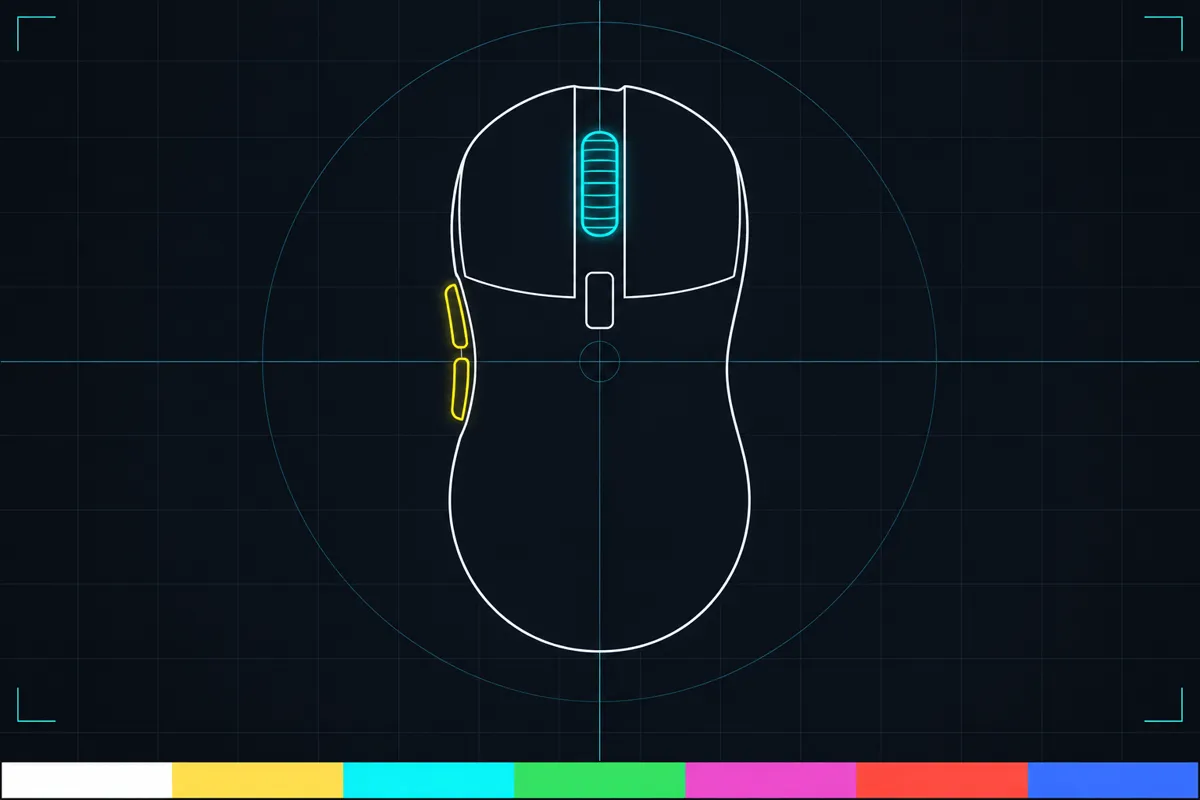
What this mouse test checks
Move the pointer into the test area to begin. Click each mouse button, including the middle button and any side buttons, and scroll the wheel. The page records button presses, how long you hold a button, and the wheel movement it receives.
The test checks buttons 0 to 4: left, middle, right, back and forward. Side buttons are included as back and forward when the browser reports them. The page suppresses the context menu and back navigation only inside the test area, so those actions do not interrupt the check there.
Read the button, wheel and event results
Button readings show which button the page received and its press count. Hold time shows how long you kept a button pressed. Click and hold each button to see whether the page registers the action and whether the hold time changes while you keep it down.
Wheel readings show the steps the page received, the scroll direction, and any tilt reported by the wheel. Scroll in both directions and compare the readings. The displayed movement describes what the browser received; it does not show how the mouse is built or how much physical distance the wheel turned.
The event-rate estimate is labelled “events the browser received per second.” It counts pointer events delivered to the page over time. Where available, the test uses the browser’s raw pointer updates; otherwise it uses grouped pointer events. Treat this as an estimate of the browser’s event rate, not the mouse’s USB polling rate.
When a result looks wrong
If a button does not register, the page may not be receiving that button’s event. Check whether the same button works elsewhere, then reconnect the mouse or try another connection if available. If a side button triggers back or forward outside the test area, that is outside the area where this page suppresses navigation.
If the wheel does not register steps, or direction seems wrong, scroll slowly in both directions and check whether the readings change. A missing tilt reading may mean the page received no tilt event. If the event-rate estimate is absent or changes, it may reflect which pointer events the browser supplied; it is not a direct reading of USB polling rate.
If the same control still fails here and elsewhere, check the mouse connection and device settings, or try the mouse on another device to narrow down whether the issue follows the mouse.
What this test can tell you
The page can show whether the browser receives clicks, holds, wheel movement and pointer events in this test area. It can help you separate a button that is not registering from a wheel that is not reporting movement.
The readings do not identify the cause of a problem. A missing event could come from the mouse, its connection, device settings or the way the browser reports input. The event-rate estimate is about events received by the page, and it does not establish a mouse’s USB polling rate.
Browser support
| Browser | Runs |
|---|---|
| Chrome and Edge on a computer | Yes |
| Firefox on a computer | Yes |
| Safari on a Mac | Yes |
| Safari on iPhone | PartlyNeeds a paired mouse. |
| Safari on iPad | PartlyNeeds a paired mouse. |
| Chrome on Android | PartlyNeeds a paired mouse. |
| Samsung Internet | PartlyNeeds a paired mouse. |
| Browsers inside apps | Yes |
Source: MDN browser-compat-data 8.1.8 · checked November 6, 2026
Questions
How do I test every mouse button?
Move the pointer into the test area and click left, middle, right, back and forward buttons. The page shows the buttons it receives and their press counts. If a side button has no reading, the browser may not be reporting it to the page.
How can I check if my mouse wheel works?
Scroll up and down while the pointer is over the test area. The page shows received wheel steps and direction. If the reading does not change, repeat with slow scrolls to check whether any movement is being reported.
Why does the mouse test show no side button?
The test can only show a side-button event when the browser passes it to the page. A button may not register because of the mouse, its connection, device settings or browser input reporting. Compare the button in another place or on another device.
Is the event-rate reading my mouse’s USB polling rate?
No. It is labelled “events the browser received per second” because it measures pointer events delivered to the page over time. The estimate can depend on which events the browser provides.
Why does my back button not navigate during the test?
The page suppresses back navigation only inside the test area so you can check the mouse button without leaving the test. Outside that area, this test does not suppress navigation.
Does this mouse test check whether my mouse is accurate?
It checks whether the browser receives button, wheel and pointer events. It does not measure cursor accuracy or explain the cause of a problem. Use the readings to see which input the page does or does not receive.