CH 05 · Input and sensors
Keyboard test
Press keys to see them light up on a layout that follows your keyboard. Check key codes, rollover and repeated presses; nothing leaves your device.
No keyboard at hand? Watch the test run on simulated typing.
- Character (key)
- –
- Physical key (code)
- –
- Held now
- –
- Most keys at once
- –
- At once, without Shift, Ctrl, Alt, Win
- –
- Keys tested
- –
- Key events
- –
- Chattering keys
- –
Press Start, then press every key. To test rollover, hold several keys at once: if you hold six and the count stops at four, the keyboard dropped two (ghosting or a rollover limit). A key that registers twice within 30 ms of being released is flagged as chattering. Click Stop to leave; while the test runs the page keeps your keys.
A browser cannot see every key: Fn is handled inside the keyboard, and brightness, volume and media keys often go straight to the system. A key that never lights is not necessarily broken; a key that lights is working.
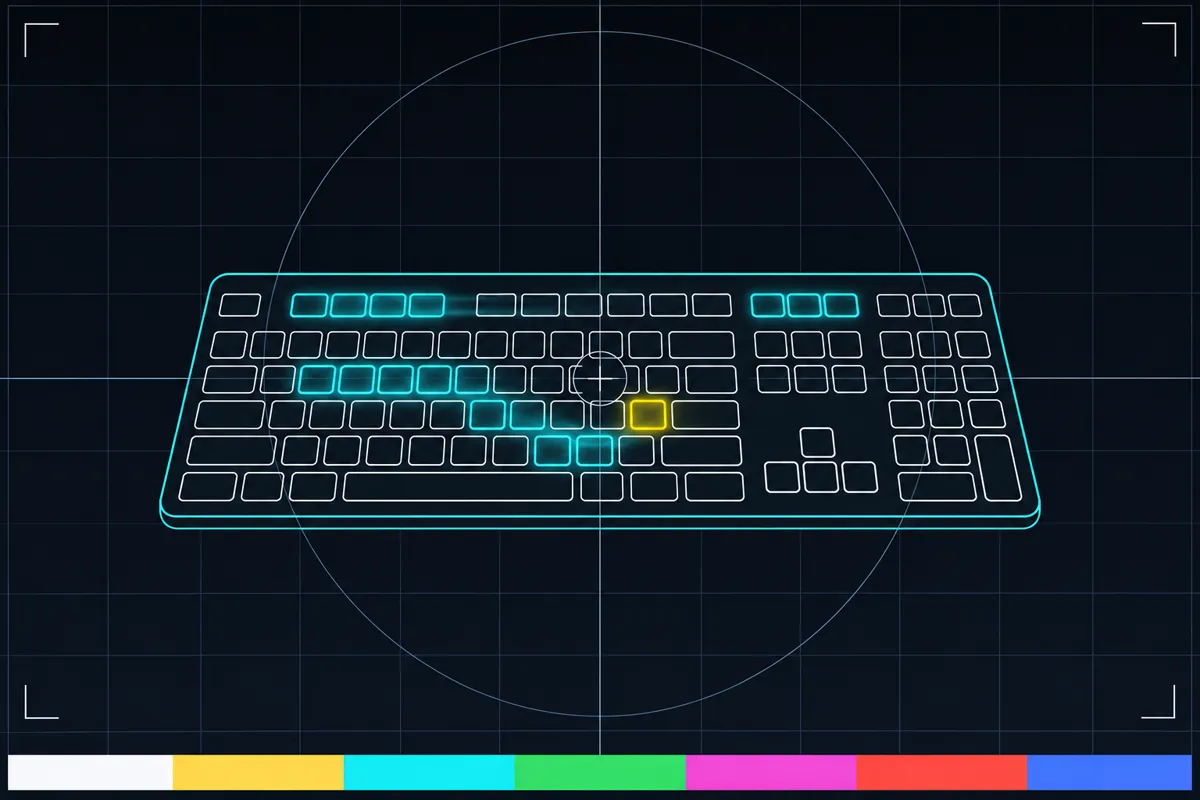
What the keyboard test checks
This online keyboard test shows which keys the page can detect as you press and release them. Each detected key lights up on a drawn layout based on the physical keys seen, such as an ANSI, ISO or laptop layout. You can also switch the layout by hand.
The test shows a physical key code and the character value for each press. The physical code identifies the key by its position, while the character value shows what it produces. These can differ when a keyboard layout changes how a key is interpreted.
Read the keys, rollover and repeat flags
A lit key means the page received a press for that key. When you release it, the page receives a release. Keys the browser cannot see, such as Fn, some media keys and the Windows key on some systems, are listed as unavailable to the test.
Rollover checks how many keys register at once. Hold several keys together and watch which ones light up. If some do not register in a combination, the test flags that combination as dropped, which can indicate ghosting. Chattering is flagged when the same key sends a second press within a few milliseconds.
When a key or combination fails
If a key does not light up, first check whether it is one of the keys the browser cannot see. If a key is visible but does not register, or a held combination drops keys, the test result points to a keyboard input issue or a limitation in that key combination. A chattering flag means the same key registered another press soon after the first.
The page links to the keyboard fix guide for next steps. Open that guide when a key does not register, a combination drops keys or repeat timing flags a key. The test reports what it can detect; it does not promise that a suggested fix will work.
Testing Escape and system shortcuts
In fullscreen on Chromium, the page can use keyboard locking to test Escape and system shortcuts. This lets you check keys that normally trigger browser or system actions while the test is running.
If you want to check these keys, use the fullscreen test mode where available. If the page cannot detect a key, it may be outside the keys the browser allows the test to see.
Browser support
| Browser | Runs |
|---|---|
| Chrome and Edge on a computer | Yes |
| Firefox on a computer | PartlySome system keys cannot be captured. |
| Safari on a Mac | PartlySome system keys cannot be captured. |
| Safari on iPhone | PartlySome system keys cannot be captured. Needs an external keyboard. |
| Safari on iPad | PartlySome system keys cannot be captured. Needs an external keyboard. |
| Chrome on Android | PartlyKey positions are not reported, so keys show by character. Needs an external keyboard. |
| Samsung Internet | PartlyKey positions are not reported, so keys show by character. Needs an external keyboard. |
| Browsers inside apps | Yes |
Source: MDN browser-compat-data 8.1.8 · checked November 6, 2026
Questions
How do I use an online keyboard test?
Open the test and press keys one at a time. Each detected press lights a key on the layout, and the page shows the physical key code and character value. You can also hold several keys together to check rollover.
What is the difference between a key code and a character?
The key code identifies the physical key that was pressed. The character value shows the character produced by that press. A changed keyboard layout can make the character differ while the physical key stays the same.
How can I check keyboard rollover or ghosting?
Hold several keys at the same time and see which ones light up. The test counts how many register together and shows combinations where keys drop. A dropped key in a combination can indicate ghosting.
Why does the test not show Fn or a media key?
Some keys are not visible to the browser, including Fn and some media keys. The Windows key is also unavailable on some systems. The test lists keys the browser cannot see.
What does a chattering key flag mean?
It means the same key sent a second press within a few milliseconds. The flag describes the repeated input seen by the test; it does not identify the cause.
Can I test Escape and system shortcuts?
In fullscreen on Chromium, keyboard locking lets the test check Escape and system shortcuts. If a key still does not appear, it may be outside the keys the browser can expose to the page.