CH 05 · Input and sensors
Mouse DPI Test
This test counts mouse movement as you move it a measured distance, such as 10 cm against a ruler. Start the test and move the mouse along that distance. Nothing leaves your device.
No mouse at hand? Watch the measurement run on a simulated one.
Lay a ruler or a card of known length next to the mouse. Press Start; the pointer disappears. Put the mouse at the zero mark, slide it straight to the end mark, then click. Escape also ends the measurement.
- Counts per inch (DPI)
- –
- Counts moved
- –
- Nearest usual setting
- –
- Straightness of the move
- –
- Input mode
- –
- Time
- –
Counts per inch is what the browser reports while the mouse moves one inch, which is what mice call DPI. With raw input the system's pointer speed and acceleration are skipped. Without it the number includes both, so it is right only with acceleration off and the Windows pointer speed at 6 of 11 (or the macOS equivalent). Screens scaled above 100% can also change what a browser reports. Treat the result as a check of your mouse's setting, within a few percent.
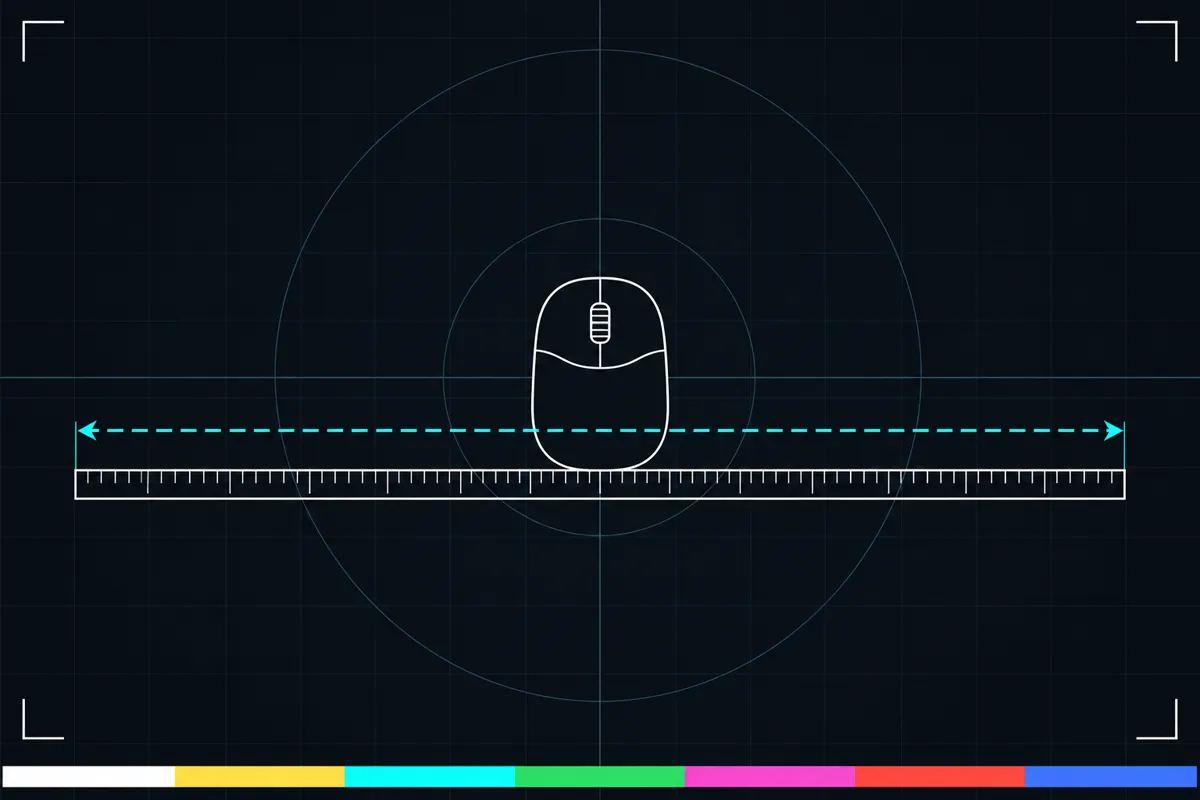
What the mouse DPI test measures
The test uses pointer lock to count how far the mouse moves on screen while you move it along a set physical distance. You can measure that distance against a card or a ruler. The example distance is 10 cm.
It converts the movement count into counts per inch. This is the reading people often call mouse DPI. The measurement includes your system sensitivity and acceleration, so it reflects those settings as well as the mouse.
Understanding the reading
The counts per inch result tells you how many movement counts the test recorded for each inch you moved the mouse. A larger reading means the pointer moved more for the measured physical distance; a smaller reading means it moved less.
The result is right as a mouse DPI reading only with acceleration off. With acceleration on, system behavior changes the movement count, so the number does not show the mouse's DPI alone. The test does not provide a separate reading for acceleration or sensitivity.
When the result seems wrong
A reading that differs from the value you expected can come from system sensitivity or acceleration, because both affect the measured movement. The physical distance may also be hard to judge if you do not follow the ruler or card consistently. Check that you moved the mouse along the same set distance and turn acceleration off before using the result as DPI.
If the reading still seems wrong, repeat the measurement with the same distance and setup, and check whether system sensitivity or acceleration has changed. The result describes the movement under those conditions.
Getting a useful measurement
Use a ruler or card to mark a set physical distance before you move the mouse. Keep the distance consistent each time so you can compare readings. The test can use an example distance of 10 cm, but the important part is measuring the path you move.
For a DPI reading, make sure acceleration is off. Keep system sensitivity the same when comparing results, since sensitivity affects the count. A changed reading does not by itself show whether the mouse or its settings caused the difference.
Browser support
| Browser | Runs |
|---|---|
| Chrome and Edge on a computer | Yes |
| Firefox on a computer | Yes |
| Safari on a Mac | Yes |
| Safari on iPhone | NoNeeds a paired mouse. |
| Safari on iPad | NoNeeds a paired mouse. |
| Chrome on Android | PartlyNeeds a paired mouse. |
| Samsung Internet | PartlyNeeds a paired mouse. |
| Browsers inside apps | Yes |
Source: MDN browser-compat-data 8.1.8 · checked November 6, 2026
Questions
Is mouse DPI the same as counts per inch?
The test reports counts per inch, a movement count for each inch you move the mouse. People often call this mouse DPI. The reading also includes system sensitivity and acceleration, so it represents mouse DPI alone only with acceleration off.
Why does my mouse DPI result change?
System sensitivity and acceleration change the movement count. A different physical distance or a different way of moving the mouse can also affect a repeat measurement. Keep the distance and settings the same when comparing readings.
How do I measure the distance for this test?
Move the mouse along a ruler or a card of a set physical length. Use the same measured distance each time you compare results.
Does this test show my mouse's DPI exactly?
It counts mouse movement over a measured physical distance and converts that to counts per inch. The reading includes system sensitivity and acceleration. It is right as a DPI reading only with acceleration off.
What should I do if the result seems too high or low?
First check that the mouse traveled the set distance and that acceleration is off. System sensitivity also affects the reading, so keep it consistent when you repeat the test.