CH 03 · Controllers
Joystick Test
Use this joystick test to check live axis movement, centring, buttons, and hat switches, including on flight sticks, wheels, pedals, and arcade sticks. Connect your device and move or press its controls. Nothing leaves your device.
Joystick test
Shows every axis and button that a controller, flight stick, wheel or pedal set reports, exactly as the browser gives it, without assuming a standard layout. Press Start the test, then press a button on the device.
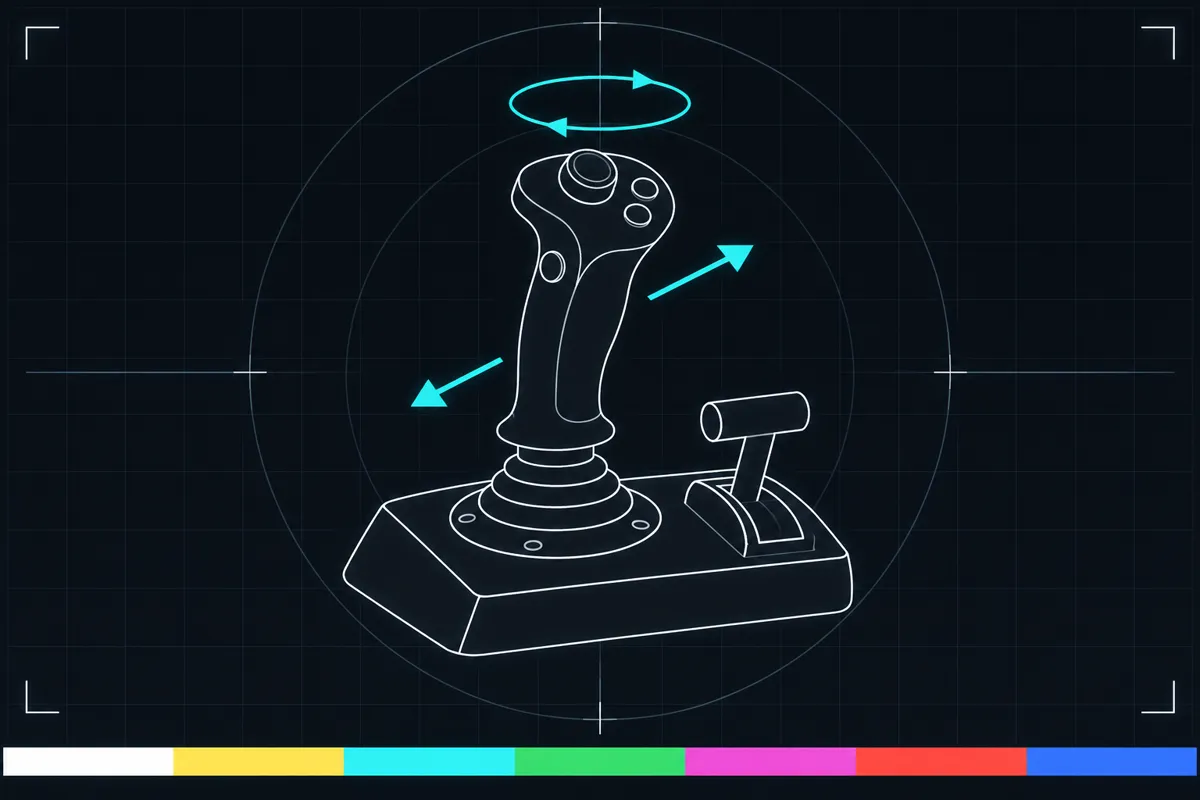
What the joystick test checks
The test shows inputs from your connected device as you move its controls. It checks each axis separately, lists buttons by index, and decodes hat switches. It does not assume that a non-standard device follows a familiar layout.
This can help you check a flight stick, steering wheel, pedal set, arcade stick, or another controller. Move one control at a time so you can see which reading changes. The page reports inputs; it does not decide whether a device is right for a particular game or task.
How to read the live values
Each axis appears as a bar with a live range and a centre reading. Move the control through its available travel and watch the bar change. The recorded range shows the values observed during calibration, while the centre reading helps you see where the axis rests when you let go.
Buttons appear by index, so press a button and look for its entry to respond. The index identifies the reported button; it does not tell you a universal button name. Hat switches are decoded into directions, which makes it easier to see which way the switch is reporting.
There is no single good range supplied for every device. Judge an axis by whether its reading changes as you move it, whether the observed range covers the movement you expect, and whether it returns near its usual centre after release. These readings describe the input the page receives, not a hardware pass or fail score.
When a reading looks wrong
If an axis does not move, a button stays unchanged, or a hat switch shows no expected direction, first check whether the device is connected and recognized by the page. Try moving or pressing one control at a time and compare the response. A missing or unexpected reading may mean the device is not connected, or that its input is not being reported as expected.
For a device that does not connect or respond, the page links to the controller not connecting fix guide. Open that guide for next steps. The joystick test itself only shows the readings it receives, so it cannot confirm the cause of a missing input.
Using the test for unusual controllers
Flight sticks, wheels, pedals, and arcade sticks may report controls in layouts that differ from a standard game controller. This test shows raw axes and indexed buttons without assuming a standard mapping, so you can see what the device reports before relying on a particular control name.
Check every axis and button you plan to use. The recorded axis ranges can help with calibration, and the centre reading can help show where a control rests. A reading here does not configure the device or change its calibration; it gives you information to use when checking settings elsewhere.
Browser support
| Browser | Runs |
|---|---|
| Chrome and Edge on a computer | Yes |
| Firefox on a computer | Yes |
| Safari on a Mac | Yes |
| Safari on iPhone | PartlyNeeds a paired controller. |
| Safari on iPad | PartlyNeeds a paired controller. |
| Chrome on Android | PartlyNeeds a paired controller. |
| Samsung Internet | PartlyNeeds a paired controller. |
| Browsers inside apps | Yes |
Source: MDN browser-compat-data 8.1.8 · checked November 6, 2026
Questions
What does a joystick test check?
It shows each reported axis as a live bar with its range and centre, lists buttons by index, and decodes hat switches. This lets you see whether the page receives changes as you move or press controls.
Can I test a steering wheel, pedals, or flight stick?
Yes. The test is designed to show raw axes and buttons without assuming the standard mapping. Check each control separately to see which reading changes.
What do axis range and centre mean?
The range records the values observed while you move an axis during calibration. The centre reading shows where it rests; compare it with the movement and resting position you expect for that control.
Why do the buttons have numbers instead of names?
Buttons are shown by index because devices can report them in different layouts. Press a button and watch which indexed entry changes, then use that to identify its reported input.
What should I do if an input does not respond?
Check that the device is connected and try moving or pressing one control at a time. If the device does not connect or respond, use the page's controller not connecting fix guide.
Does a moving reading mean the joystick is working correctly?
It means the page is receiving a changing input for that control. Compare the movement, range, and resting centre with what you expect; the page does not provide a universal pass or fail threshold.