CH 04 · Screen
HDR Test
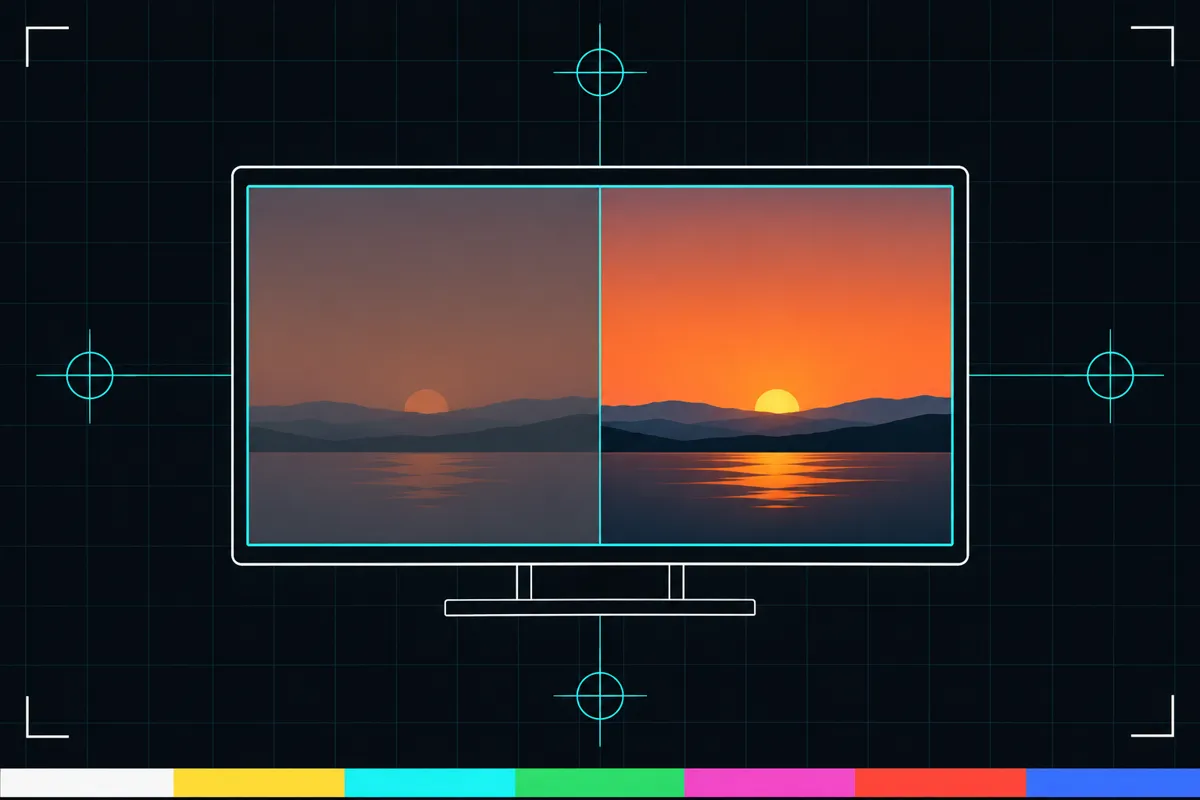
Run this HDR test to check whether your system, browser and screen report HDR now. View the HDR images beside the same images in SDR; nothing leaves your device.
Two checks: what your browser reports about HDR, and a test image you can look at. Press Start to see the image in HDR above the same patches as an ordinary screen shows them.
The readings appear once the page has loaded.
- dynamic-range: highThe browser says this screen is showing HDR now: HDR is switched on in the system and the panel supports it. If it says no on an HDR-capable screen, switch HDR on in the system's display settings.
- video-dynamic-range: highThe browser can play HDR video on this screen. It can be yes when the first is no: some systems tone-map HDR video onto an ordinary screen.
- The test imageEight patches from 50 to 4000 nits. On an HDR screen the patches right of the starred one get brighter step by step, up to the most the screen can show. On an ordinary screen they all look the same white.
- Colour gamutWide colour (Display P3, Rec. 2020) is not HDR: many ordinary screens have it. HDR needs the brightness range as well.
The Demo runs the test in a window on this page instead of full screen, with sample values where a device would be read. Its result is labelled Demo and is never yours.
What this HDR test checks
This test checks whether HDR is on in your system, whether your browser supports HDR, and whether your screen shows HDR now. It reads what the browser reports about high dynamic range for the page and for video. It also checks the reported colour gamut, which describes the range of colours the screen can show.
The page places HDR test images beside the same images in SDR. The HDR versions use the page's own images with PQ encoding. Comparing the pair can help you see how the two versions look on your screen, while the verdict shows what the system and browser report.
How to read the result
The verdict combines three separate checks: whether HDR is on in the system, whether the browser supports HDR, and whether HDR is shown on this screen. Read each part on its own. A positive result for one part does not by itself mean the other two are positive.
The test also reports the colour gamut. This reading describes the colour range the browser reports for the display; it is not the same as the HDR verdict. The side-by-side images give a visual comparison between HDR and SDR, but the page does not give a numeric score or a pass threshold. Judge the result from the reported states and what you can see, rather than from a number the test does not show.
When HDR does not show
If the verdict says HDR is off, unsupported, or not shown, that points to a difference between the system state, browser support, and the screen's current output. For example, the system may not have HDR on, the browser may not report support, or the screen may not be showing the HDR image as HDR. The verdict separates these checks so you can see which part is reported differently.
Check the system HDR setting, the browser's HDR support, and whether your screen can show the HDR image. Then run the test again and compare the new verdict with the SDR image. A visual difference alone does not change what the browser reports.
What the image comparison can tell you
Look at the HDR image and its SDR copy next to each other. The comparison is useful for seeing whether the versions appear different on this display, but appearance can depend on what the system, browser, and screen are doing at the time. The verdict reports those states separately from your visual impression.
If both images look alike, that alone does not prove HDR is unavailable. Use the verdict to check the system, browser, and screen readings. If the verdict reports HDR but the images do not look different, the test cannot tell from appearance alone why; the reported colour gamut and HDR states are the available clues.
Browser support
| Browser | Runs |
|---|---|
| Chrome and Edge on a computer | PartlySome extras are missing. |
| Firefox on a computer | Yes |
| Safari on a Mac | PartlySome extras are missing. |
| Safari on iPhone | PartlySome extras are missing. |
| Safari on iPad | PartlySome extras are missing. |
| Chrome on Android | PartlySome extras are missing. |
| Samsung Internet | PartlySome extras are missing. |
| Browsers inside apps | PartlySome extras are missing. |
Source: MDN browser-compat-data 8.1.8 · checked November 6, 2026
Questions
What does this HDR test check?
It checks whether HDR is on in the system, supported by the browser, and shown on the screen now. It also reports the colour gamut and shows HDR images beside the same images in SDR.
Why does the test check both the system and the browser?
They are separate parts of the result. HDR can be on in the system while the browser does not report support, so the verdict shows each check rather than treating them as one.
What does colour gamut mean here?
It is the colour range the browser reports for the screen. It is a separate reading from whether HDR is on, supported, or shown.
Why do the HDR and SDR images look the same?
The image comparison is only one clue. Check the verdict to see what the system, browser, and screen report, since a similar appearance does not by itself show which part is responsible.
Does a positive HDR result mean my screen is showing HDR?
Read the verdict's separate states. It reports whether HDR is on in the system, supported by the browser, and shown on the screen, so check the screen state as well as the other two.