CH 05 · Input and sensors
Gyroscope test
Move your device to see live orientation, rotation rate, acceleration, level and compass heading readings. On iPhone, tap to allow motion access; nothing leaves your device.
No phone at hand? Watch the test run on simulated sensors.
Level
- alpha (α)
- –
- beta (β)
- –
- gamma (γ)
- –
- Rotation rate α · β · γ
- –
- Acceleration without gravity x · y · z
- –
- Acceleration with gravity x · y · z
- –
- Total pull
- –
- Heading is measured from
- –
- Orientation events per second
- –
- Motion events per second
- –
- What this device gives the page
- –
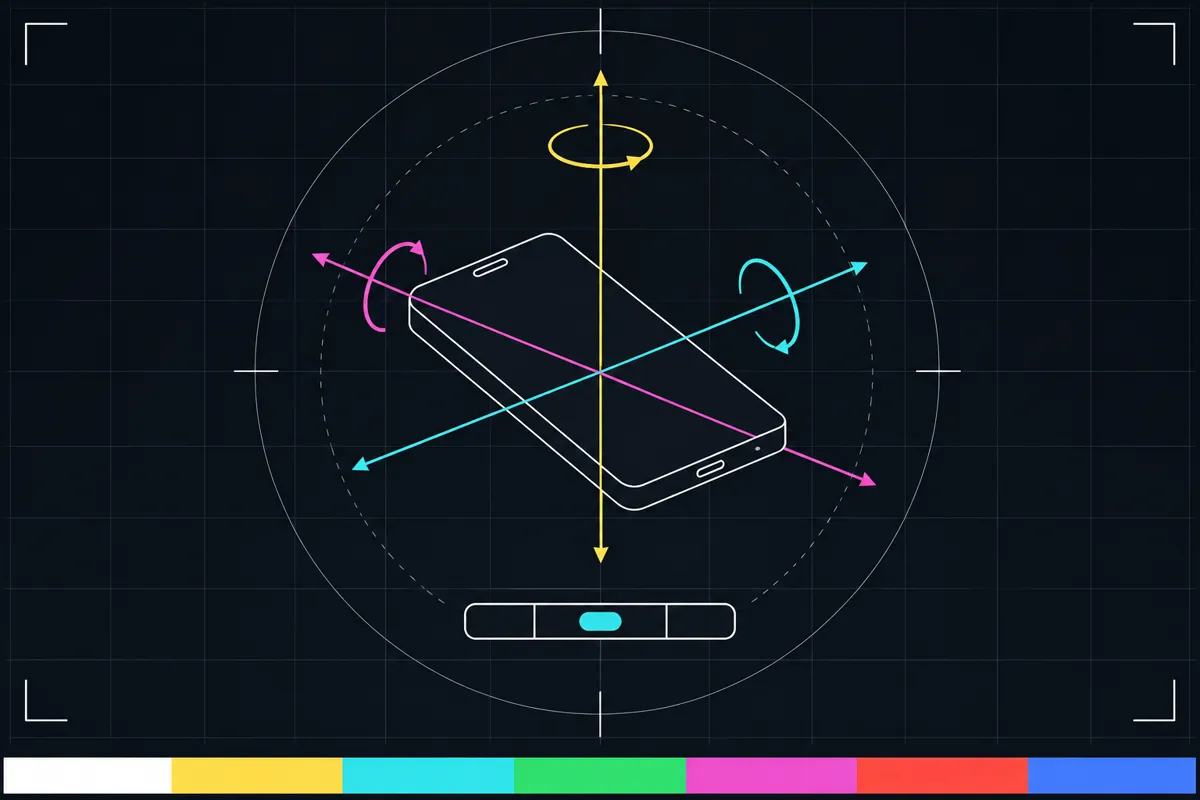
Lay the device flat to read the bubble level, hold it upright to read the compass, and turn and shake it to see the phone, the dial and the scope follow. The browser limits how often it passes sensor readings to a page, so the rates here are the page's, not the sensor chip's. On an iPhone or iPad the browser asks for motion access when you press Start; if you refuse, reset it in the browser's site settings. Compass headings are only as good as the phone's magnetometer: keep it away from metal and magnets.
What this sensor test checks
This gyroscope test reads motion and orientation data from your device while the page is open. Turn or tilt your device and watch the readings change. The page also shows a level and a compass heading, so you can check several motion sensors in one place.
The test uses the device's reported orientation angles, rotation rate, acceleration, and sampling interval. Acceleration is shown both with gravity and without it. These are live readings, so they can change as the device moves or as it sends new sensor data.
What each reading means
Alpha, beta and gamma are orientation angles reported by the device. They describe how its orientation changes as you turn and tilt it.
Rotation rate shows how quickly the device is turning. Acceleration with gravity includes the effect of gravity, while acceleration without gravity removes that effect from the displayed reading. The sampling interval tells you the time between sensor readings.
The level is a visual aid for checking whether the device is tilted. The compass heading shows the direction the device reports. On iPhone, the heading comes from its compass reading; on Android, it comes from absolute orientation. The test does not provide a pass score for these readings.
How to read the result
For a basic check, move the device and see whether the orientation, rotation rate or acceleration readings respond. The level and heading should also display a reading when the device provides the data. A changing value shows that the page is receiving that kind of sensor information, but it does not prove that every sensor function is working correctly.
The page does not set a numeric threshold for a good result. Judge the readings by whether they appear and respond to movement, and whether the level or compass heading is available. A missing reading or values that do not respond can mean the device did not provide that sensor data to the page.
When readings are missing or do not change
If the page shows that there are no motion sensors to read, the device is reporting that motion data is unavailable. This is the expected message on desktop in this test. A phone can also show missing or unchanged readings if motion access was not granted or if its sensor data is unavailable.
On iPhone, tap the permission prompt to let the page read motion data. Then move the device again and check whether the readings respond. The guide can help you check the issue, but it does not guarantee a fix.
Compass test and level limits
The compass test shows the heading supplied by the device, and the level shows tilt. These displays are useful for checking whether the page receives those readings as you move the device.
This is a device sensor check, not a hearing or health test. It reports the data available to the page and cannot establish why a sensor reading is absent or whether the device has a hardware fault.
Browser support
| Browser | Runs |
|---|---|
| Chrome and Edge on a computer | NoComputers have no motion sensors. |
| Firefox on a computer | NoComputers have no motion sensors. |
| Safari on a Mac | NoComputers have no motion sensors. |
| Safari on iPhone | PartlySome extras are missing. |
| Safari on iPad | PartlySome extras are missing. |
| Chrome on Android | Yes |
| Samsung Internet | PartlySome extras are missing. |
| Browsers inside apps | Yes |
Source: MDN browser-compat-data 8.1.8 · checked November 6, 2026
Questions
What does a gyroscope test check?
It shows live orientation, rotation rate and acceleration readings from your device. It also displays a level and a compass heading when those readings are available.
Why does my iPhone ask for permission?
The page needs your tap to request access to motion data on iPhone. Allow it, then move your device to see whether the readings respond.
Why does the test say there are no motion sensors?
The page shows this message on desktop because it has no motion sensors to read there. If you see it on a phone, the motion data may not be available to the page.
What should I do if the readings do not change?
On iPhone, grant motion access from the prompt and try moving the device again.
Does a compass heading mean the compass is working correctly?
The heading means the device supplied a compass-related reading to the page. The test does not give an accuracy range or confirm that the compass is correct.