CH 02 · Camera
Online Mirror
Turn on your webcam to see a full-screen mirror. The image is flipped by default, and you can use zoom, a thirds grid, or a white frame to add light. Nothing leaves your device.
The screen may dim after a while. Light adds a white frame around the picture: turn the screen brightness up and it lights your face. Esc leaves full screen.
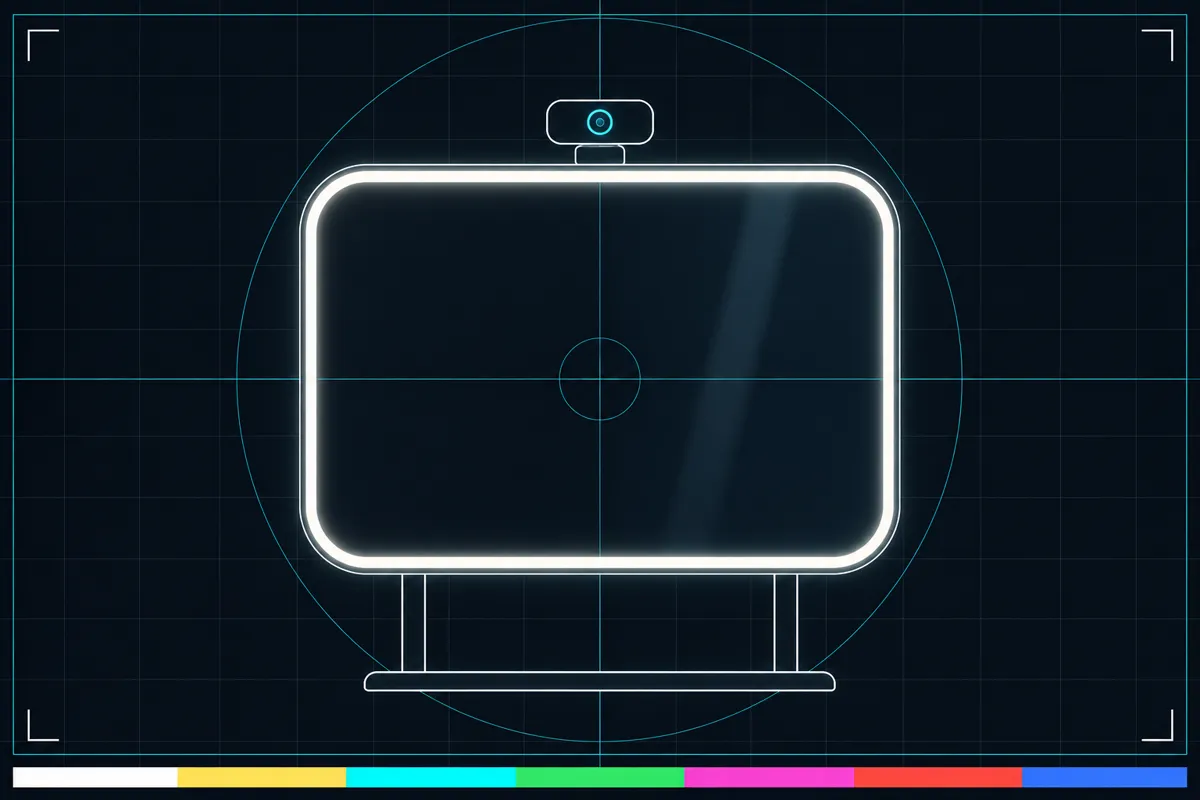
What the online mirror shows
The page displays your webcam stream across the screen, so you can check how you look on camera and adjust your position. The image starts flipped, like a mirror. This changes how the view appears on your screen.
Use zoom to make the image appear closer or farther away. The thirds grid adds guide lines over the picture to help you place yourself in the frame. The white frame around the image is a ring light effect: it uses the white-screen trick to add light from the display.
What each control means
The live image is the webcam view shown on your screen. Flipped means the image is reversed from the camera's usual view. Zoom changes how close the image looks, while the thirds grid overlays lines to help with framing.
The white frame is a bright border around the mirror. It can add light to the view, but the amount depends on your screen and surroundings. If the screen goes dark while the mirror is open, wake lock may keep it on where supported.
When the mirror does not work
If the image is blank or the camera does not start, the page may not be able to use your webcam. Check the camera permission for the page and whether another setting or device issue is blocking access.
The page links to a camera troubleshooting guide with next steps. Open that guide if the image stays blank or the camera will not start.
Using the mirror to check framing
Look at the image to see whether your face is centered and whether the camera view includes what you want to show. Turn the thirds grid on if guide lines help you position yourself. Adjust zoom if the view feels too close or too wide.
The mirror shows a webcam picture, not a measure of image quality. A dim or unclear picture can depend on the lighting, camera, or surroundings. The white frame may add screen light, but it does not change the room lighting.
Browser support
| Browser | Runs |
|---|---|
| Chrome and Edge on a computer | Yes |
| Firefox on a computer | Yes |
| Safari on a Mac | Yes |
| Safari on iPhone | PartlyNo full screen on iPhone: the test fills the window instead. |
| Safari on iPad | Yes |
| Chrome on Android | Yes |
| Samsung Internet | Yes |
| Browsers inside apps | PartlyMany apps block the camera and mic here: open the page in your browser. |
Source: MDN browser-compat-data 8.1.8 · checked November 6, 2026
Questions
How do I use the online mirror?
Open the page and allow webcam access when asked. It shows the webcam stream full screen, flipped by default. Use the controls for zoom, the thirds grid, or the white frame.
Why is my webcam image flipped?
The image is flipped by default so it looks like a mirror. This affects how the view appears on your screen. It does not mean the webcam itself has been physically turned.
What does the white ring light frame do?
The white frame around the image uses the white-screen trick to add light from your display. How much it helps depends on your screen and surroundings. It is not a separate lamp.
Why is the online mirror blank?
The page may not have permission to use your webcam, or another device or setting may be preventing access. The page links to a camera troubleshooting guide for next steps.
Does the mirror keep my screen awake?
The page uses wake lock where supported to help keep the screen on while the mirror is open. This depends on whether your device supports that feature.