CH 01 · Audio
Audio latency test
Play short clicks and let the page record them through your microphone. The test measures speaker-to-microphone delay in milliseconds; run it once for each audio connection to compare wired and Bluetooth.
Use speakers, or hold an earcup of your headphones to the microphone. The test plays 10 clicks and listens for each; keep the room quiet.
Start low and turn it up slowly, above all in headphones: loud tones can harm your ears.
- Click 1–
- Click 2–
- Click 3–
- Click 4–
- Click 5–
- Click 6–
- Click 7–
- Click 8–
- Click 9–
- Click 10–
- Output latency, reported
- –
- Base latency, reported
- –
- Input latency, reported
- –
- Your previous run
- –
Reported values are what the browser says about its own buffers. The measured round trip adds the speaker or earphone link, the air and the microphone.
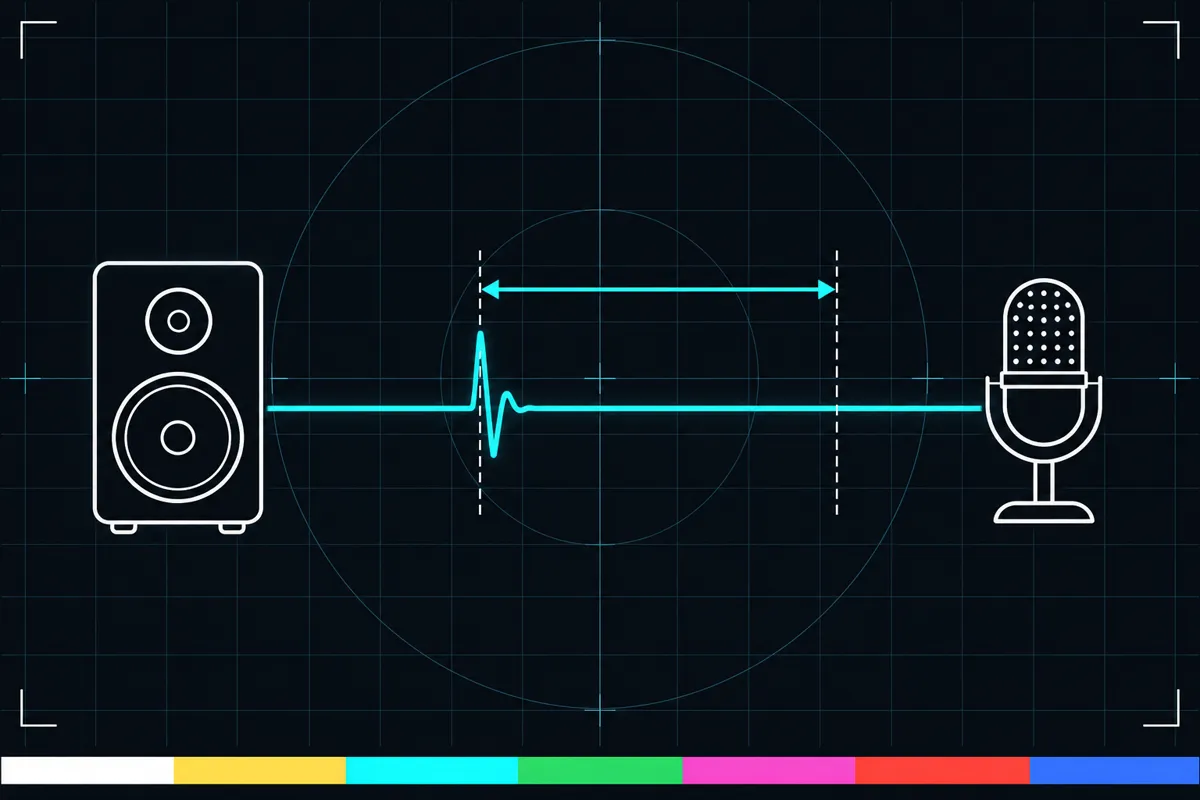
What the audio latency test measures
This audio latency test measures a loop from sound output back to sound input. The page plays short clicks through your selected audio output and records them with your microphone, with audio processing off. It measures the time between playing each click and capturing it.
That result includes the path through the speaker and microphone as well as delay in the browser's audio handling. The page takes account of the browser's reported output latency and base latency when it calculates the round trip. The result is a measure of this setup, not a reading from the headphones alone.
The test repeats the measurement 10 times and shows the median. A median is the middle result after the readings are put in order, so a single unusually high or low reading has less effect on it. The page also shows what the browser reports as output latency, which is a separate reading from the speaker-to-microphone loopback.
How to read the results
The loopback result is shown in milliseconds. It tells you how much time passed between a click being played and the microphone capturing it, after the browser-reported output and base latency are accounted for. A larger number means a longer measured round trip in the setup you used.
Output latency is the browser's own report of delay on the audio output side. It is not the same as the loopback result, because the loopback also includes the sound reaching the microphone and being captured. Read the two values together to understand what the browser reports and what the full speaker-to-microphone test measured.
There is no pass or fail threshold provided for this test. Judge the result by comparing the connections under the same conditions, and by whether the delay is acceptable for what you want to do. This is a timing check, not a test of sound quality.
Compare wired and Bluetooth audio
To compare wired and Bluetooth audio, run the test once with one connection, then run it again with the other. The page compares the median loopback readings from the two runs. A lower reading means the measured round trip was shorter in that run.
Keep the rest of the setup as similar as you can between runs. Use the same speaker or headphones and microphone where possible, and keep their placement consistent. If you change several parts of the setup at once, the readings cannot show which change affected the result.
This comparison describes the tested setup. It does not establish that every wired or Bluetooth device will have the same delay, and the browser's output latency report may differ between runs. Use the measured values as a practical comparison rather than a universal rating.
When the result seems wrong
A high loopback reading means the click took longer to travel from output to microphone in that test. It does not identify one cause by itself. The result may reflect the audio route, the browser's reported timing, or how the speaker and microphone were arranged.
If the result is much higher than expected, check that the intended output and microphone were used and that the microphone could capture the clicks. Make sure the two devices are positioned consistently, then run the test again. Compare repeated runs and look at the median rather than relying on one reading.
If the browser-reported output latency is high while the loopback result is also high, the output side may be contributing to the measured delay. If the values do not seem to match, remember that loopback includes the trip back through the microphone.
Browser support
| Browser | Runs |
|---|---|
| Chrome and Edge on a computer | Yes |
| Firefox on a computer | Yes |
| Safari on a Mac | Yes |
| Safari on iPhone | Yes |
| Safari on iPad | Yes |
| Chrome on Android | Yes |
| Samsung Internet | Yes |
| Browsers inside apps | PartlyMany apps block the camera and mic here: open the page in your browser. |
Source: MDN browser-compat-data 8.1.8 · checked November 6, 2026
Questions
What does an audio latency test measure?
It measures the delay between the page playing a short click and the microphone capturing it. The page accounts for the browser's reported output latency and base latency, then shows the round-trip result in milliseconds.
Is this a headphone latency test?
It can compare headphone output when the headphones are the selected audio output. The loopback result still includes the microphone capture path, so it is not a reading of headphone delay alone.
How does the test compare wired and Bluetooth?
Run the test once using wired audio and once using Bluetooth. The page compares the median loopback result from each run, so the comparison reflects the connections and setup you tested.
Why does the test use a median?
It repeats the click measurement 10 times and shows the middle reading after ordering the results. This reduces the effect of one unusually high or low result on the number shown.
What is output latency?
It is the delay the browser reports for the audio output side. It is separate from loopback, which measures the trip from playing a click through capturing it with the microphone.
What should I do if the result is high?
Check that the intended audio output and microphone were used, and that the microphone captured the clicks.